
What Is GitHub Copilot? Uses, Limits and How to Get Started
What is GitHub Copilot? GitHub Copilot is GitHub’s AI coding assistant, working inside your code editor and across the GitHub platform. This AIToolNest profile explains what GitHub Copilot can do, who it is a good fit for, the limits you should know about and how to test it safely before relying on it for everyday work.
Updated: November 1, 2026. Prices checked on GitHub’s official Copilot plans page the same day.
What is GitHub Copilot? A short definition
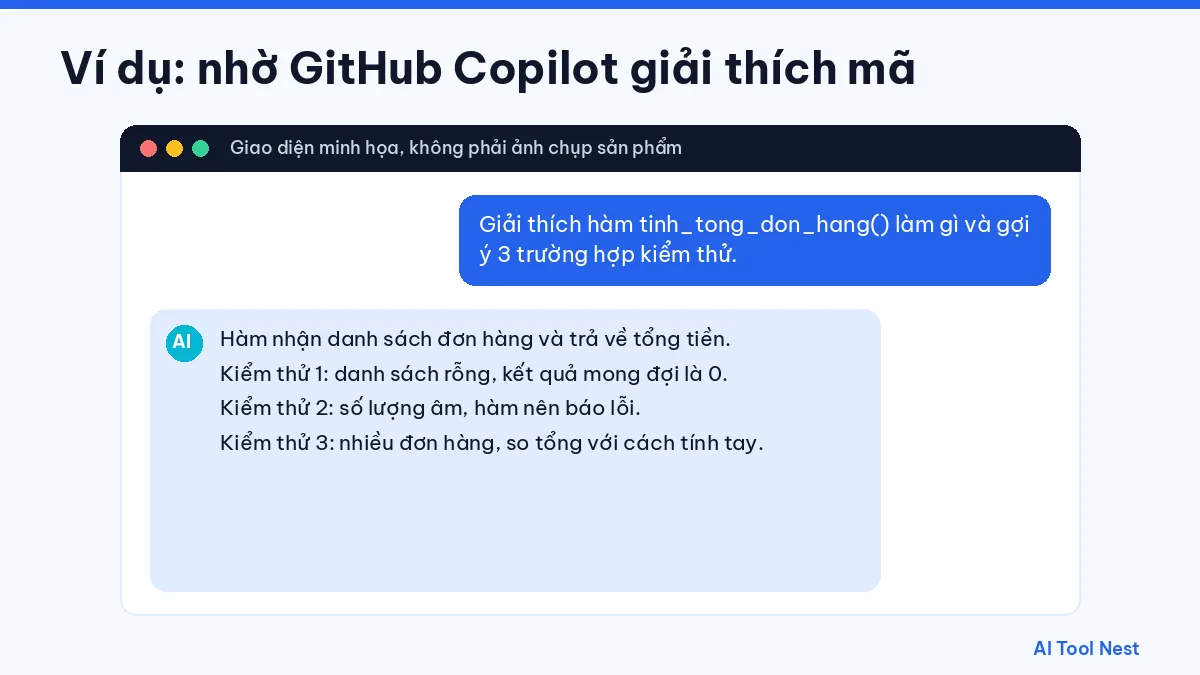
GitHub Copilot is an AI coding assistant built by GitHub (part of Microsoft). It suggests code as you type, answers questions about your codebase in chat, and in agent mode can edit several files, run commands or open a pull request for you.
Copilot works inside familiar editors such as VS Code, Visual Studio, JetBrains IDEs and Xcode, as well as on github.com and in the terminal through Copilot CLI. Depending on your plan, you can choose between several AI models.
- Developer: GitHub, Inc. (Microsoft).
- Where to use it: VS Code, Visual Studio, JetBrains, Xcode, github.com and the CLI.
- Main features: code completion, chat, agent mode and code review.
- Billing model: monthly subscription with a GitHub AI Credits allowance.
GitHub Copilot at a glance
Who makes GitHub Copilot?
GitHub Copilot is developed by GitHub. Always sign up or log in on the official domain, and avoid third-party sites that claim to offer a “free” or “unlocked” version.
Who is GitHub Copilot for?
It is a good fit for developers, computer science students and software teams already using GitHub. If you are just starting out, pick one task you repeat often and test GitHub Copilot on that, rather than using it for everything from day one.
GitHub Copilot pricing for individuals (checked November 1, 2026)
| Plan | Price per month | Best for |
|---|---|---|
| Free | $0 | Limited chat and agent use, trying it out |
| Pro | $10 | Individual developers coding daily |
| Pro+ | $39 | Heavier agent use and premium models |
| Max | $100 | Very heavy agent workloads |
Every plan includes a monthly GitHub AI Credits allowance (1 credit = $0.01) for chat and agents; regular code completions do not use these credits. Beyond the allowance you can set a budget for extra usage. See organization plans and the latest prices on the GitHub Copilot plans page.
What can GitHub Copilot help you with?
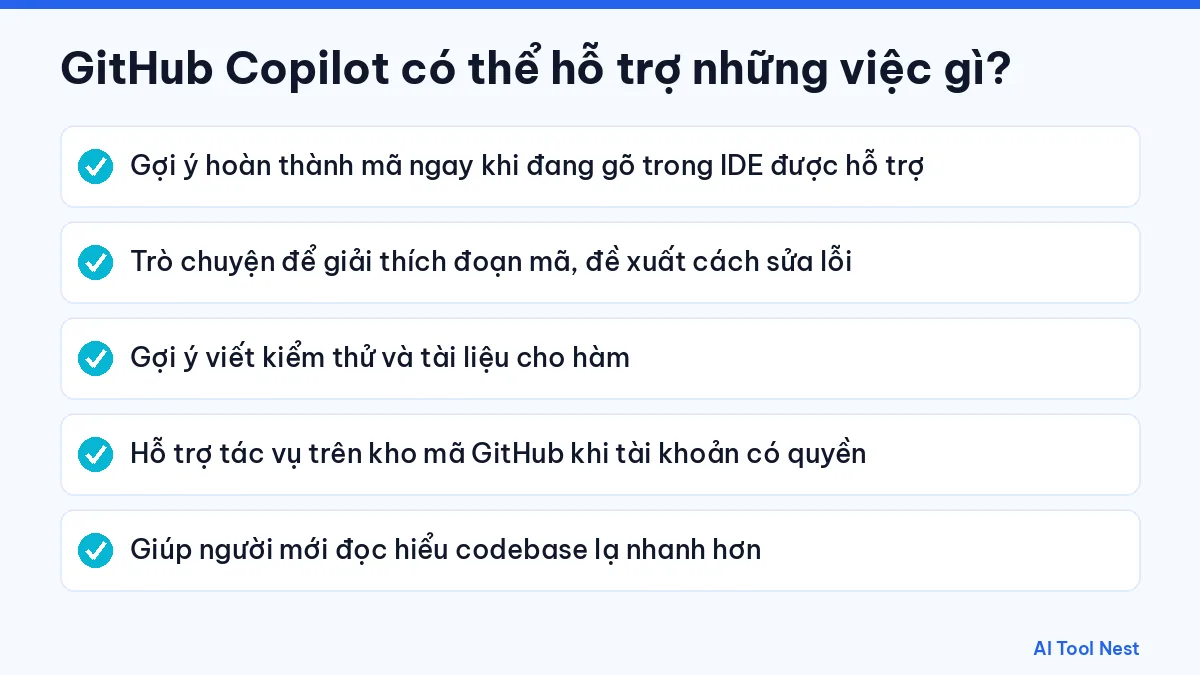
- Suggest code completions as you type in supported IDEs.
- Chat to explain code and propose fixes.
- Suggest unit tests and documentation for functions.
- Help with tasks on GitHub repositories where your account has access.
- Help newcomers get up to speed on an unfamiliar codebase.
How useful it is depends on how you describe the task. Browse the AI prompt library and our guide to writing clear prompts in 6 steps to get results that fit what you need.
Limits and things to watch when using GitHub Copilot
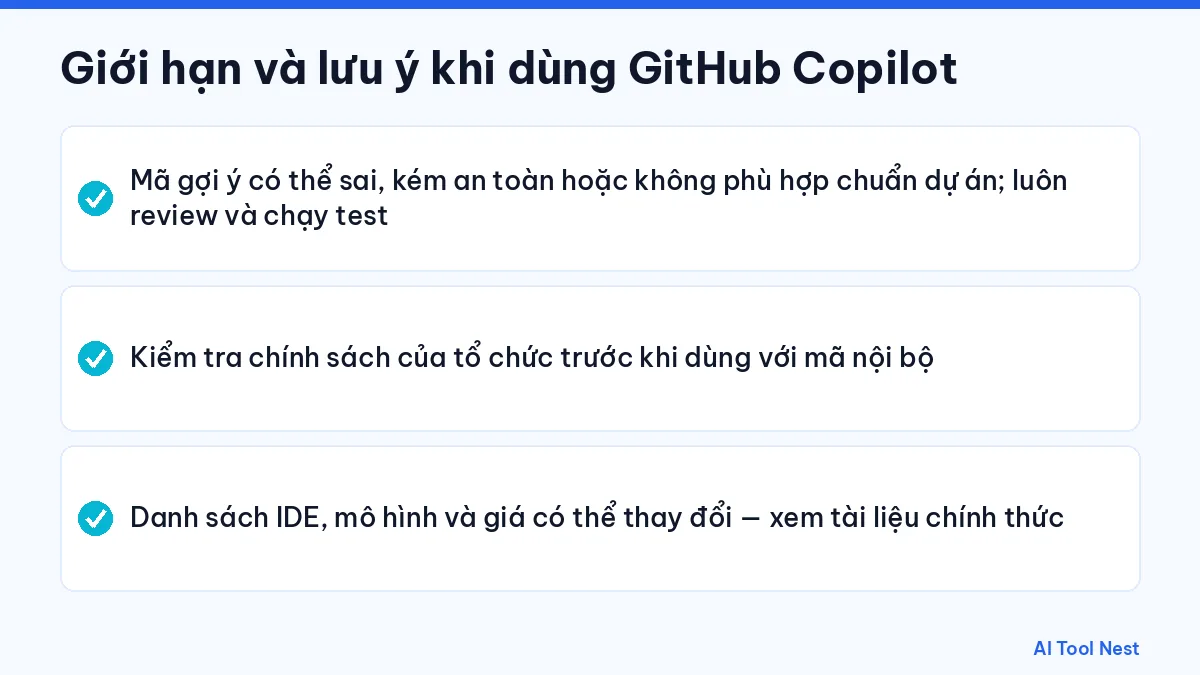
- Suggested code can be wrong, insecure or off-standard for your project; always review it and run tests.
- Check your organization’s policy before using it on internal code.
- Supported IDEs, models and pricing change – see the official documentation.
Treat every output as a draft that needs review. For legal, medical or financial content, or any critical data, have a qualified person check it.
How to use GitHub Copilot: a beginner’s guide
Step 1: Turn on Copilot for your GitHub account
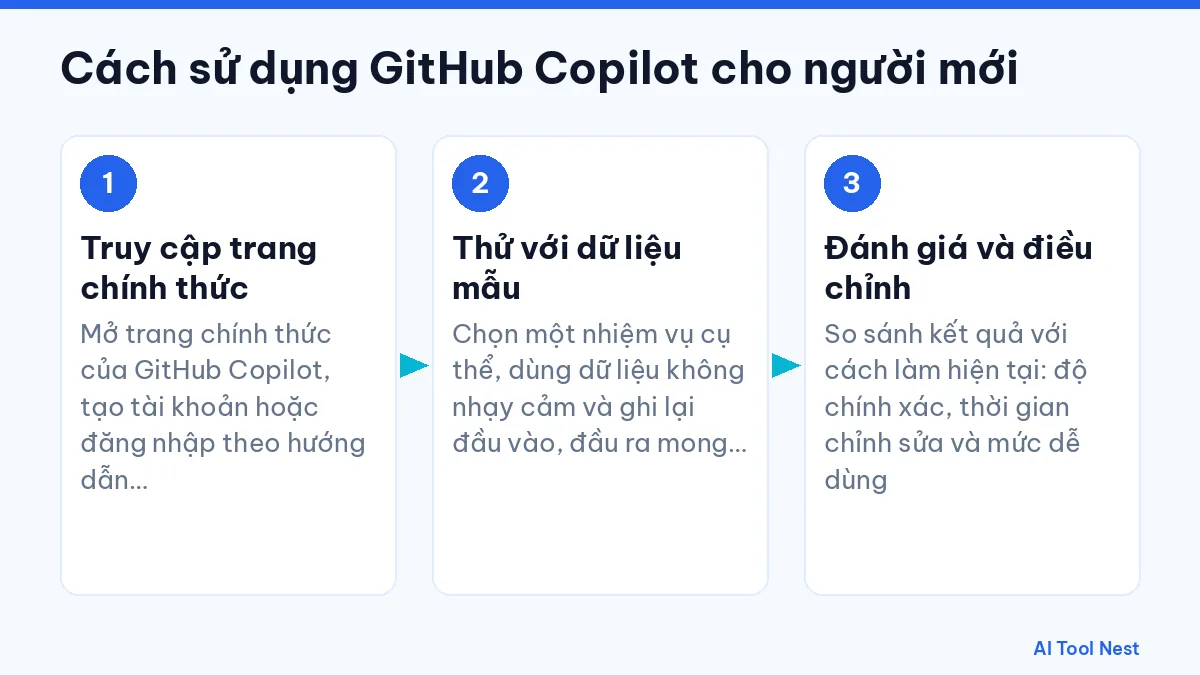
Sign in to GitHub, open the official GitHub Copilot page and pick the Free plan or a paid trial.
Step 2: Install the editor extension
In VS Code, install the GitHub Copilot extension (which includes Copilot Chat) and sign in with GitHub. For JetBrains or Visual Studio, install the matching plugin.
Step 3: Try code suggestions
Write a comment describing a function, for example “// check whether an email address is valid”, then press Enter. Press Tab to accept a suggestion or Esc to dismiss it.
Step 4: Ask Copilot Chat about your code
Select some code and ask: “Explain this function and write three edge-case tests.” Specific requests get better answers; see how to write AI prompts in 6 steps.
Step 5: Review before you commit
Run your tests, read every change and check licenses on code that matches public code. See also choosing the right AI tool for your work.
GitHub Copilot alternatives compared
| Tool | Best at | Choose it when |
|---|---|---|
| GitHub Copilot | Deep GitHub integration across many editors | Your team already uses GitHub for code and pull requests |
| Cursor | AI-first editor with multi-file edits | You want an editor built around AI |
| Claude (Claude Code) | Long reasoning across a whole project | You want a terminal agent for large tasks |
| ChatGPT | Explaining concepts and sample code | You are learning or need quick answers outside the editor |

A useful test is to give each tool the same small issue and measure passing tests, review time and cost. See our profiles of Claude and ChatGPT, or the AI tool comparisons page.
Examples of GitHub Copilot at work
- Writing tests: generate unit tests for an existing function, then add edge cases yourself.
- Reading legacy code: ask Copilot Chat to explain an undocumented module.
- Debugging: paste an error message and ask for likely causes.
- Review: use Copilot code review for a first pass on a pull request.
Tips for better GitHub Copilot results
Copilot uses the files you have open as context, so keep the relevant files open and close unrelated ones. Name functions and variables clearly and write a one-line comment about intent before asking for code; vague names lead to vague suggestions. In chat, reference the exact file or selection and state the language version, framework and constraints you care about. For agent mode, start with small, well-scoped issues and review the diff before accepting it. Track how often you edit or reject suggestions over a week; that number is the most honest measure of whether Copilot is saving you time.
Frequently asked questions about GitHub Copilot
What is GitHub Copilot?
GitHub Copilot is GitHub’s AI coding assistant. It suggests code as you type, answers questions in chat and has an agent mode that can edit multiple files.
Is GitHub Copilot free?
Yes, there is a Free plan with limited chat and agent use. Pro costs $10 per month and Pro+ $39 per month (checked November 1, 2026).
What are GitHub AI Credits?
They are the unit Copilot uses to bill chat and agent work; one credit equals $0.01. Each plan includes a monthly allowance.
Which editors does Copilot support?
VS Code, Visual Studio, JetBrains IDEs, Xcode, Neovim, github.com and the terminal via Copilot CLI.
Should I use Copilot with company code?
Only if your organization allows it. Business and Enterprise plans add policy and data controls for companies.
Should I choose GitHub Copilot or Cursor?
Copilot suits you if you want to keep your current editor and GitHub integration; Cursor suits you if you want an AI-first editor. Try both on the same task.
Conclusion
GitHub Copilot is worth trying in the AI coding category if you start with a clear task and always check the output. Explore more options in the AI tools directory or head back to the AIToolNest homepage.
Sources: GitHub Copilot (official site), GitHub Copilot documentation.