What Is Canva AI? Features, Pricing and How to Use It (2026)
What is Canva AI? Canva AI is the set of AI features built into the Canva design platform for creating and editing visual content. This AIToolNest profile explains what Canva AI can do, who it is a good fit for, the limits you should know about and how to test it safely before relying on it for everyday work. Pricing and plan details link back to the official site because they change over time.
Updated: November 1, 2026.
What is Canva AI? A short definition
Canva AI is the set of AI features built into Canva, the online design platform. It includes the Canva AI assistant, where you describe what you want and get designs, images, presentations or text, plus Magic Studio tools such as Magic Write, Magic Design, Magic Edit, Magic Expand, background remover, Magic Resize and Translate.
Instead of starting from a blank page, you type a prompt or upload content and Canva AI drafts a layout, image or copy that you then edit with Canva’s normal drag-and-drop tools.
- Developer: Canva (Australia).
- Main tools: Canva AI assistant, Magic Write, Magic Design, Magic Media, background remover, Magic Resize.
- Where to use it: canva.com, desktop and mobile apps.
- Languages: works with prompts in English, Vietnamese and many other languages.
- Plans: Free, Pro, Business and Enterprise.
Canva AI at a glance
Who makes Canva AI?
Canva AI is developed by Canva. Always sign up or log in on the official domain, and avoid third-party sites that claim to offer a “free” or “unlocked” version.
Who is Canva AI for?
It is a good fit for marketers, small shop owners, teachers and non-designers who need visuals fast. If you are just starting out, pick one task you repeat often and test Canva AI on that, rather than using it for everything from day one.
Pricing and plans
Canva AI is included in every Canva plan, but usage differs. Canva Free gives up to 20 Standard or Premium AI uses per month. Canva Pro costs US$144/year for one person and includes up to 200 Premium AI uses (or 20 Ultra AI uses) per month, with Standard AI tools such as Magic Write and Translate under fair use, plus Pro-only tools like background remover and Magic Resize. Business costs US$250/year per person with double the AI allowance. See the official Canva pricing page for your region (checked November 2026).
What can Canva AI help you with?
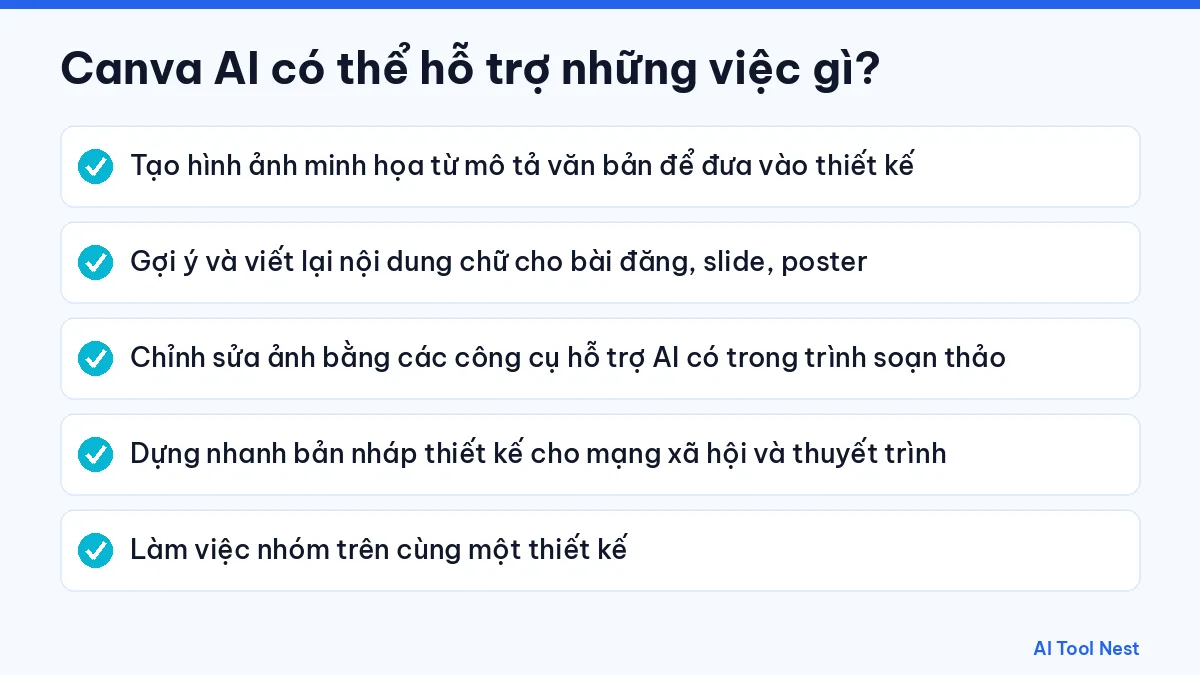
- Generate illustrations from a text description to drop into a design.
- Suggest and rewrite copy for posts, slides and posters.
- Edit photos with the AI-assisted tools in the editor.
- Mock up social media graphics and presentations quickly.
- Collaborate with your team on the same design.
How useful it is depends on how you describe the task. Browse the AI prompt library and our guide to writing clear prompts in 6 steps to get results that fit what you need.
Limits and things to watch when using Canva AI
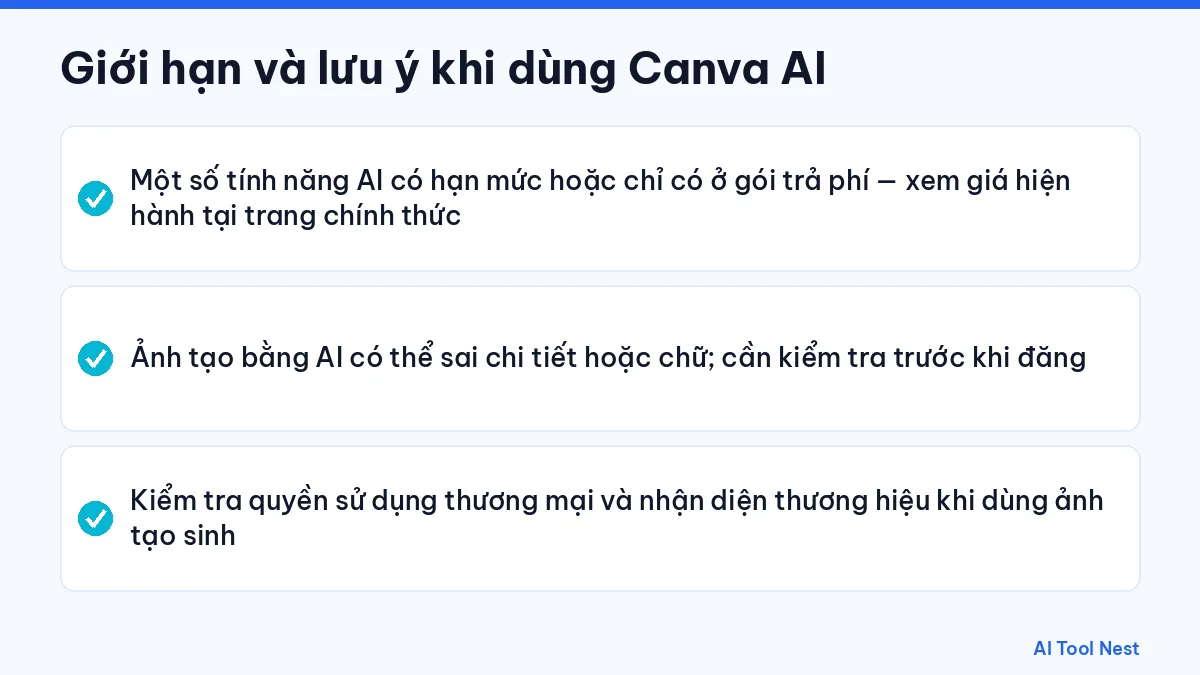
- Some AI features have usage caps or are paid-only – check current pricing on the official site.
- AI-generated images can get details or text wrong; review them before publishing.
- Check commercial-use rights and brand guidelines when using generated images.
Treat every output as a draft that needs review. For legal, medical or financial content, or any critical data, have a qualified person check it.
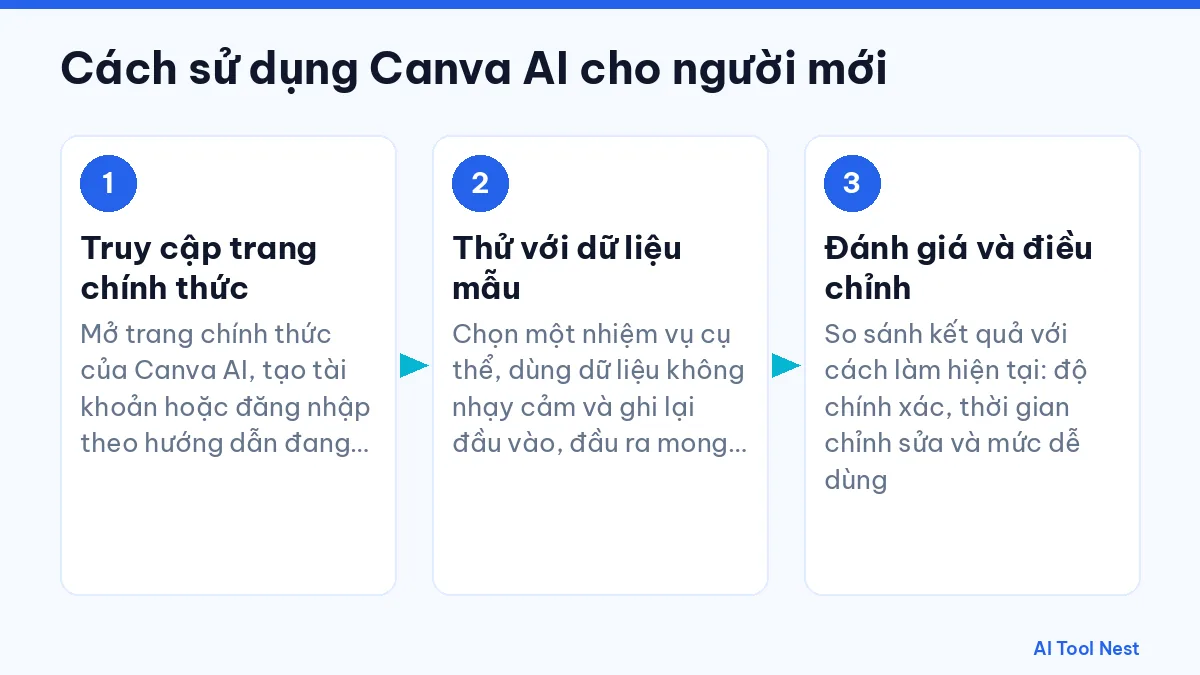
How to use Canva AI: a beginner’s guide
Step 1: Go to the official site
Open the official Canva AI website and create an account or log in following the on-screen instructions.
Step 2: Test with sample data
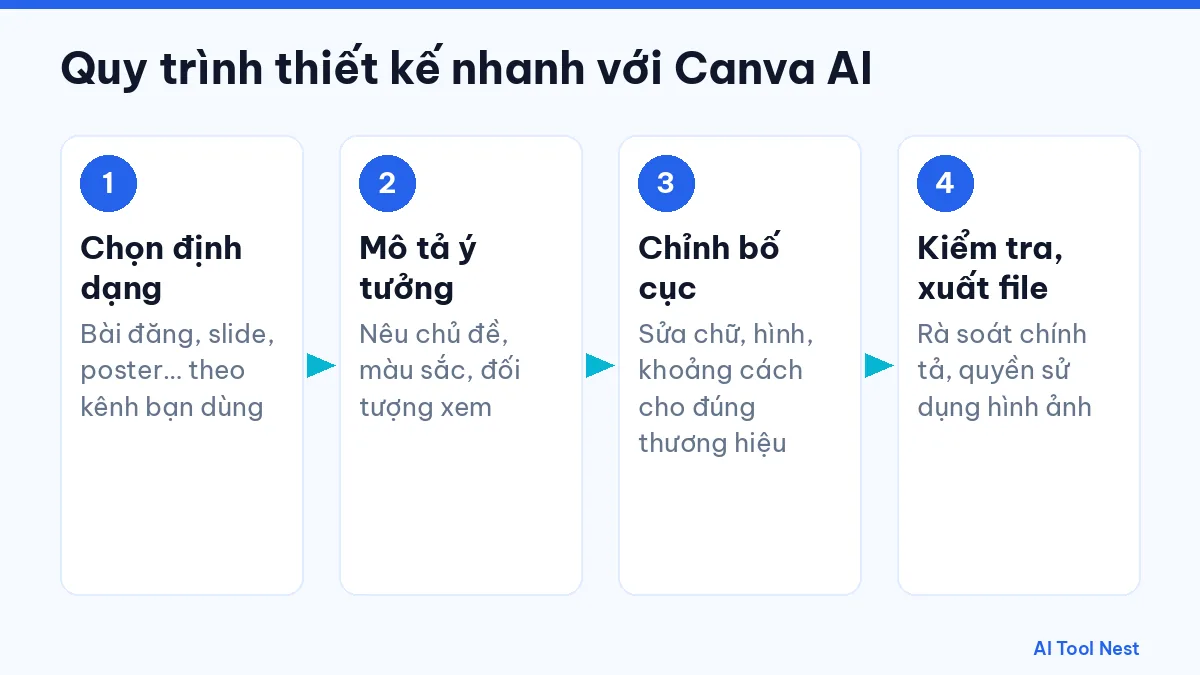
Choose one specific task, use non-sensitive data, and write down the input and the output you expect so the result is easy to judge.
Step 3: Evaluate and adjust
Compare the result with how you do the task today: accuracy, editing time and ease of use. See also our guide on choosing the right AI tool for your work.
Canva AI vs. similar tools
| Criteria | Canva AI | Runway | ChatGPT |
|---|---|---|---|
| Developer | Canva | See each tool’s profile | |
| Pricing and limits | Check current pricing on each tool’s official website | ||
| How to choose | Run the same request in each tool and keep the one whose output needs the least editing | ||
See our profiles of Runway and ChatGPT, or the AI tool comparisons page for a closer look.
Related Canva AI articles
- How to use Canva AI: a step-by-step guide
- Best AI presentation makers, including Canva
- AI content writing
- How to write AI prompts
- What is ChatGPT?
- What is Gemini?
- What is Claude?
Frequently asked questions about Canva AI
What is Canva AI?
Canva AI is the collection of AI tools inside Canva, including the Canva AI assistant and Magic Studio features like Magic Write, Magic Design and background remover, that turn prompts into designs, images and text.
Is Canva AI free?
Partly. Canva Free includes up to 20 Standard or Premium AI uses per month. Canva Pro (US$144/year) raises that to up to 200 Premium AI uses and unlocks Pro-only tools.
What is Magic Studio in Canva?
Magic Studio is Canva’s name for its suite of AI tools, such as Magic Write, Magic Design, Magic Edit, Magic Expand, Magic Grab and Magic Resize.
Can Canva AI make presentations?
Yes. Describe your topic and Canva AI or Magic Design drafts a slide deck you can edit. Check facts and adjust the layout before presenting.
Can I use Canva AI images commercially?
Generally yes under Canva’s terms, but avoid prompts that copy brands, real people or copyrighted characters, and read Canva’s AI terms for your use case.
Is Canva AI better than ChatGPT for design?
For finished visual designs, Canva AI is usually faster because the output is an editable design. ChatGPT is better for drafting text and ideas that you can then lay out in Canva.
Conclusion
Canva AI is worth trying in the AI image generation category if you start with a clear task and always check the output. Explore more options in the AI tools directory or head back to the AIToolNest homepage.
Sources: Canva AI (official site), Canva Help Center.