
Quick answer: Here’s how to use Gemini: go to gemini.google.com or open the Gemini app on your phone, sign in with your Google account, then type or say what you need. The free plan already includes Deep Research for in-depth reports, Gemini Live for voice conversations, Canvas for drafting documents and Gems for building your own custom assistants. If you live in Gmail and Docs, the Google AI Plus or Pro plan puts Gemini right inside those apps.
Gemini is Google’s AI assistant, and its big advantage is a direct line to Google Search and the wider Google ecosystem. This beginner’s guide shows you how to use Gemini step by step, with sample prompts and tips for getting the most out of the free plan. Details were checked against the official Gemini plans page in October 2026. If you’re not sure what Gemini is yet, read our overview first.
Updated: October 30, 2026
Contents
- Get started with Gemini
- Write prompts for Gemini
- Key features
- Gemini in Gmail, Docs and Drive
- Gemini on your phone
- Everyday examples
- Free and paid plans
- Tips and safety
- FAQ
Step 1: How to use Gemini on the web and in the app
All you need is a Google account. To get started:
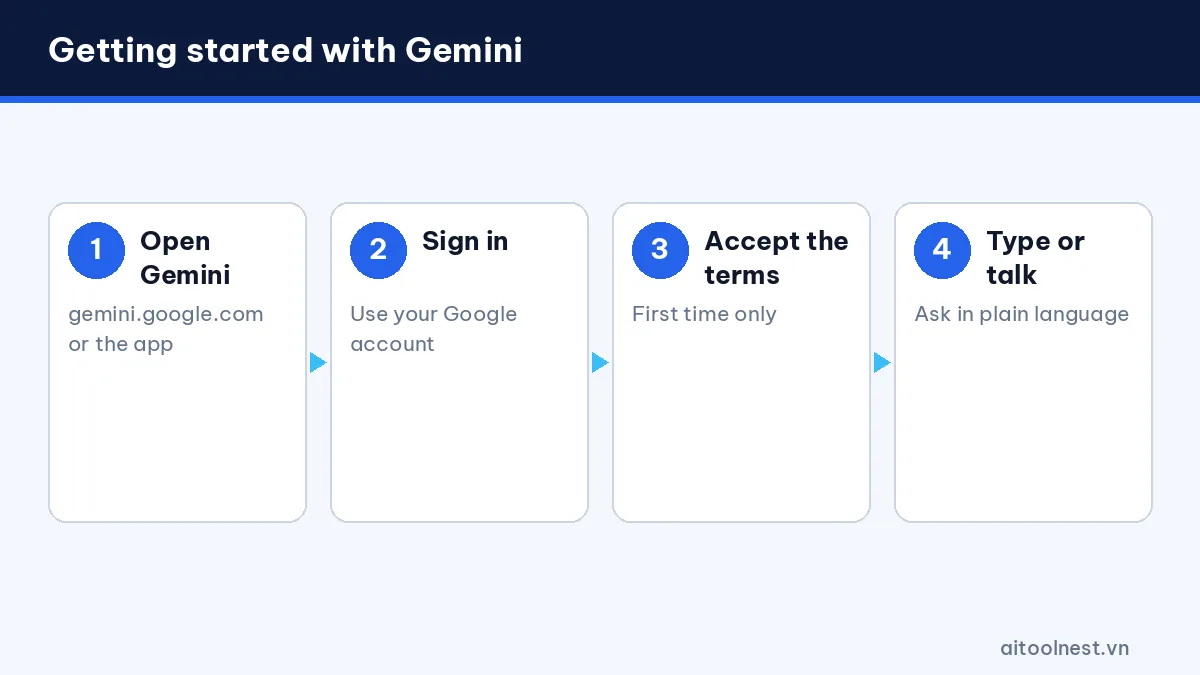
- Open gemini.google.com in your browser, or download the Gemini app on Android or iPhone. On many Android phones Gemini is already installed and replaces Google Assistant.
- Sign in with your Google account. Work or school accounts may need an administrator to turn Gemini on.
- Accept the terms, then type your question into the “Ask Gemini” box.
The interface has a message box at the bottom (with buttons for files, images and the microphone), your conversation list in the sidebar, a mode picker for the type of answer you want and a Gems section. You can pin, rename or delete any conversation, which helps once your history starts to grow. You can also switch between faster and more thorough answer modes: use the fast mode for quick questions and the thinking mode for planning, math or multi-step problems.
Step 2: Write prompts that get the answer you want
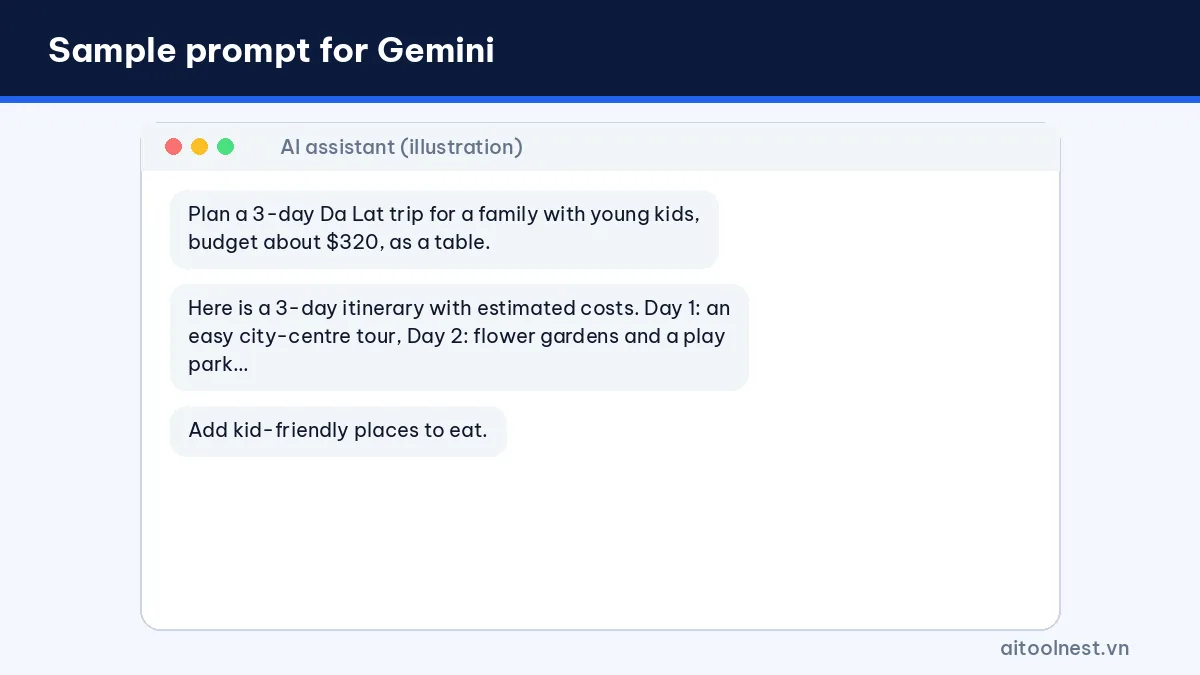
Gemini understands everyday language well. A clear prompt states the goal, context, audience, length and format. For example:
- “Plan a three-day trip to Da Lat for a family with young kids on a budget of about $320, shown as a day-by-day table.”
- “Explain compound interest to a 15-year-old, with one example using real numbers.”
- “Write a polite email to my manager asking for two days off, under 100 words.”
If the answer isn’t quite right, keep the conversation going: “shorter”, “add sources”, “make it more casual”. Gemini often includes Google Search links so you can verify what it says. For a method that works with any assistant, see our guide on how to write AI prompts.
Step 3: Use Gemini’s key features
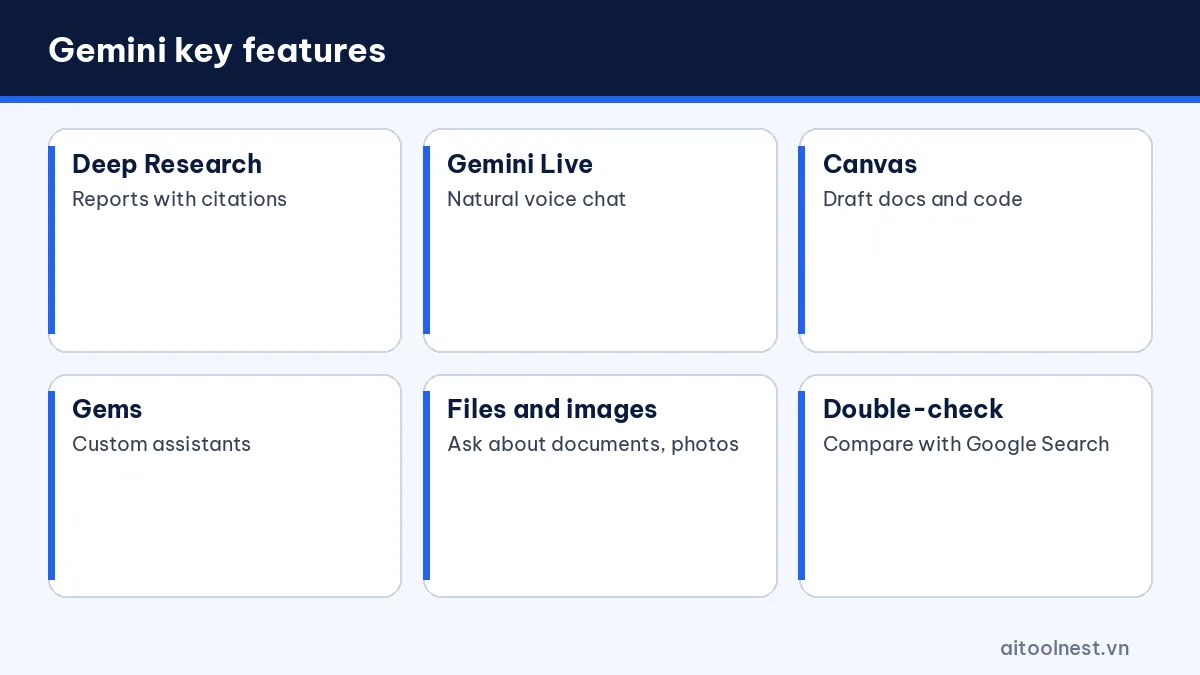
Deep Research
Deep Research lets Gemini search and read many web pages on its own, then compile a report with citations. It’s great for market research, product comparisons or getting up to speed on a new topic. You review the research plan first, adjust it if needed, then wait a few minutes for the report, which you can export to Google Docs.
Gemini Live
Gemini Live lets you hold a natural voice conversation, and you can interrupt it mid-sentence. On your phone you can also share your camera or screen and ask about what you’re looking at, for instance how to fix an appliance or what a sign says. Live is also a great way to practice a foreign language or rehearse a presentation out loud.
Canvas
Canvas is a writing space next to the chat for drafting and editing documents, code or small web pages. Highlight a passage and ask Gemini to change just that part, then export the result to Google Docs.
Gems
Gems are custom assistants: you write standing instructions once (role, tone, format) and reuse them as often as you like, such as a “Facebook post editor” Gem or an “English interview coach” Gem.
Step 4: Use Gemini with Gmail, Docs and Drive
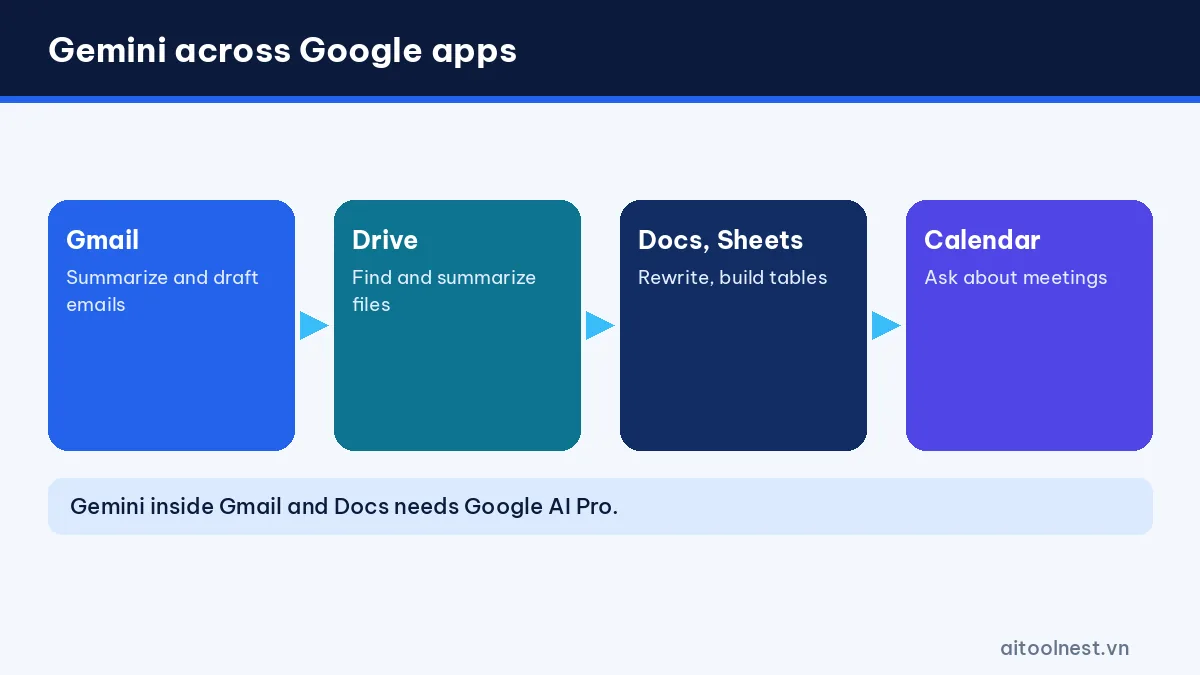
This is what really sets Gemini apart from ChatGPT or Claude. In the Gemini app you can connect your Google apps and ask about your own data:
- “Summarize this week’s unread emails about the ABC project.”
- “Find the September sales report in Drive and give me the three key points.”
- “What meetings do I have next Monday?”
With Google AI Plus or Pro, Gemini also appears directly inside Gmail, Docs and Sheets, where it can draft emails, rewrite paragraphs, build tables or summarize documents without leaving the app. You can turn these connections off at any time in settings.
How to use Gemini on your phone
On Android, press and hold the power button or say “Hey Google” to call up Gemini over any screen. You can ask about what’s on the screen, set alarms, send messages or open apps. On iPhone, use the Gemini app and add its widget to your home screen for quick access. Snapping a photo and asking about it is handy for homework, product labels or translating a menu.
Everyday examples of how to use Gemini
- Students: photograph a problem and have Gemini explain it step by step, or generate practice questions from a PDF textbook.
- Office workers: summarize long email threads, draft meeting minutes and build planning tables in Sheets.
- Online sellers: write product descriptions, brainstorm content ideas and research competitors with Deep Research.
- Families: plan weekly meals, organize trips and translate documents in other languages.
For each task, save your best prompt as a Gem so you can reuse it with one click next time.
Common Gemini problems and quick fixes
- “Gemini isn’t available for your account”: work and school accounts need an administrator to enable Gemini. Try a personal Google account instead.
- It can’t see your emails or files: open settings and check that the Google Workspace connection is turned on.
- Answers look outdated: ask Gemini to search the web and include sources, or rephrase with a date, such as “as of this month”.
- You’ve reached the limit: limits on the free plan reset every few hours; wait, shorten your requests or upgrade.
- Voice doesn’t respond: check microphone permissions for the app and your browser.
If a problem persists, sign out and back in, update the app, or try a different browser before contacting Google support.
Gemini free vs paid plans
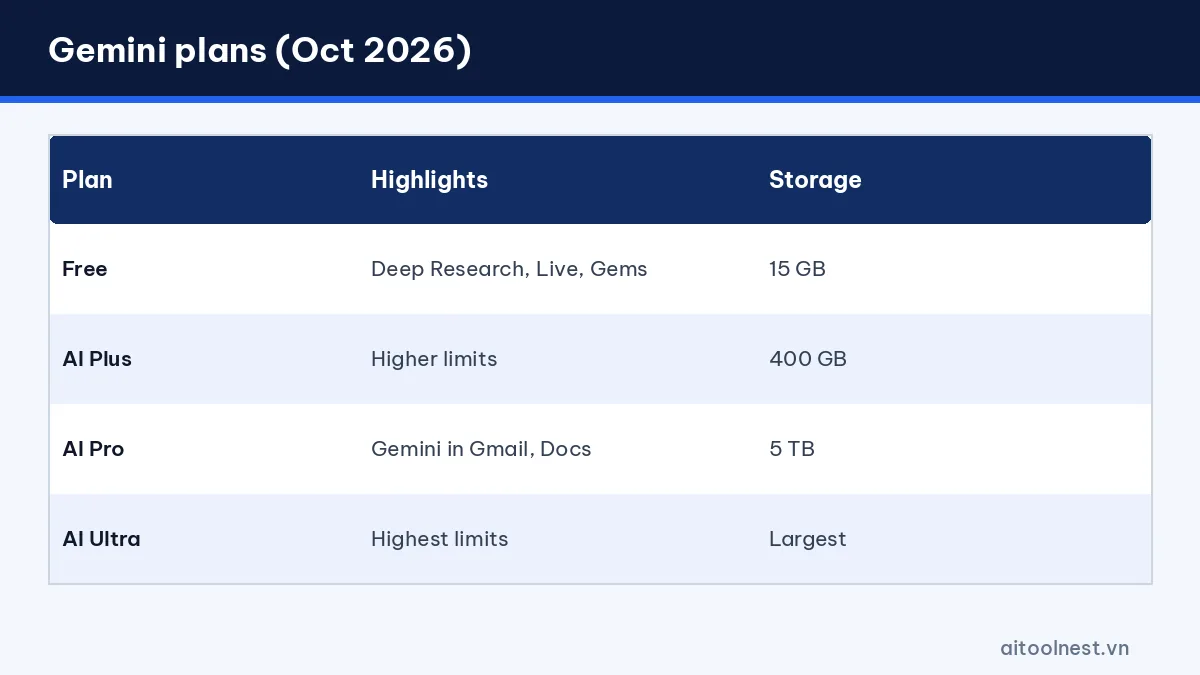
| Plan | Highlights | Storage |
|---|---|---|
| Free | Deep Research, Live, Canvas, Gems; limits reset every few hours | 15 GB |
| Google AI Plus | Higher limits for AI features | 400 GB |
| Google AI Pro | Gemini in Gmail and Docs, large limits | 5 TB |
| Google AI Ultra | Highest limits, experimental features | Largest |
Local prices are shown in the app and can change with promotions. If you already pay for Google One, upgrading to a plan with Gemini is often cheaper than buying a separate AI assistant. To see how it stacks up against its main rival, read our ChatGPT vs Gemini comparison.
Tips for using Gemini well, and staying safe
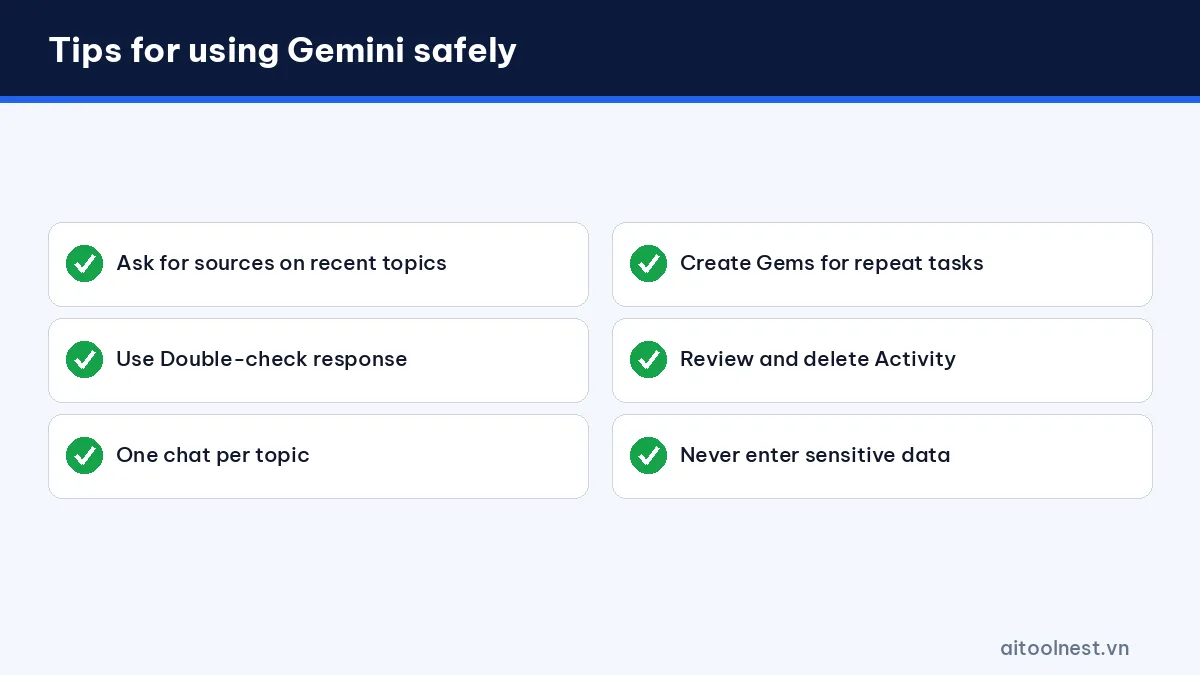
- Ask for sources when your question involves news, prices or recent events.
- Use the “Double-check response” button so Gemini compares its answer with Google Search.
- Keep one conversation per topic so the context doesn’t get mixed up.
- Create Gems for recurring jobs instead of retyping long instructions.
- Open Activity in the Gemini app to review or delete your history, or turn saving off.
- Never enter passwords, ID numbers or confidential company data.
When you hit Gemini’s limits, you can switch to ChatGPT or Claude AI for a while. Our AI tools directory lists more options, and you’ll find other tutorials in our AI guides.
How to use Gemini: frequently asked questions
Is Gemini free?
Yes. Any Google account can use Gemini for free, including Deep Research, Gemini Live, Canvas, Gems and 15 GB of storage. Usage limits reset every few hours.
What languages does Gemini support?
Gemini works in dozens of languages, including English and Vietnamese, for both typed chats and Gemini Live voice conversations.
How do I use Gemini in Gmail?
In the Gemini app, turn on the Google Workspace connection to ask about your email. To use Gemini directly inside Gmail and Docs, you need Google AI Plus or Pro or a supported Workspace account.
Does Gemini save my chat history?
Yes, if Activity is turned on in the Gemini app. You can review, delete or stop saving activity in settings.
Should I use Gemini or ChatGPT?
If you use Gmail, Docs and Android every day, Gemini is more convenient. If you want an all-round assistant with many outside integrations, ChatGPT is a strong choice.
Conclusion
Knowing how to use Gemini well means playing to Google’s strengths: fresh information with sources, in-depth research with Deep Research, and working right inside Gmail, Docs and Drive. The free plan covers most study and everyday work. If you live in Google’s ecosystem and need more storage, Google AI Pro is well worth considering.
