

Quick answer: Here’s how to use Claude in a nutshell: go to claude.ai or download the Claude app, sign up with your email or Google account, then type your request in the chat box. For better results, state the role, goal, context and format you want, upload documents when you need analysis, and use Projects to store files for recurring work. The free plan already includes web search, memory and Artifacts.
Claude is Anthropic’s AI assistant, and many users rate it highly for natural writing, reading long documents and coding. This step-by-step guide shows beginners how to use Claude, with sample prompts and tips to avoid running out of usage. Features were checked against the official Claude plans page in October 2026. If you’re not sure what Claude is yet, start with our Claude overview.
Updated: October 30, 2026
Contents
- Create a Claude account
- Get to know the interface
- How to write prompts for Claude
- Upload and analyze files
- Use Projects and Artifacts
- Usage limits and how to save them
- Common beginner mistakes
- Real-world use cases
- FAQ
Step 1: Create an account to start using Claude
You can use Claude in a web browser, in the desktop app (Windows and macOS) and in the mobile app (Android and iOS). To sign up:
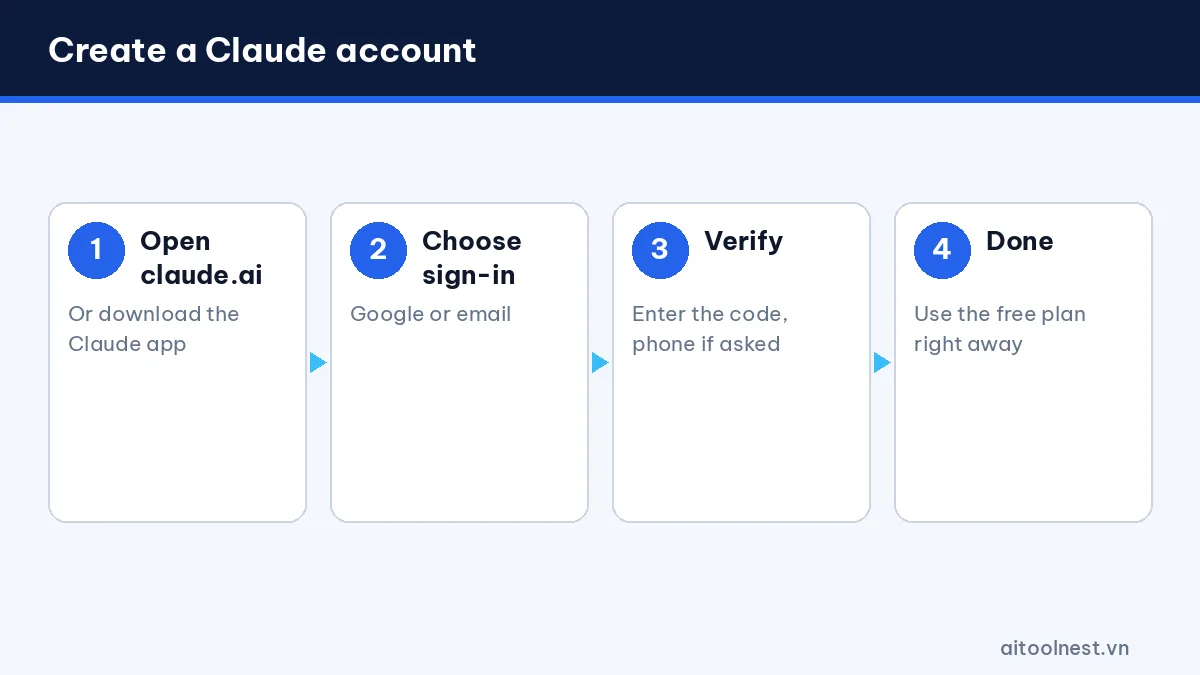
- Open claude.ai in your browser, or download the Claude app from your app store.
- Choose Continue with Google, or enter your email address to receive a sign-in code.
- Verify your phone number if you’re asked to.
- Enter a display name, review the terms and finish.
Once you’re signed in, you can use the free plan right away. You don’t need a payment card. If you want more usage later, you can upgrade to Pro at any time from the settings menu.
Step 2: Get to know the Claude interface
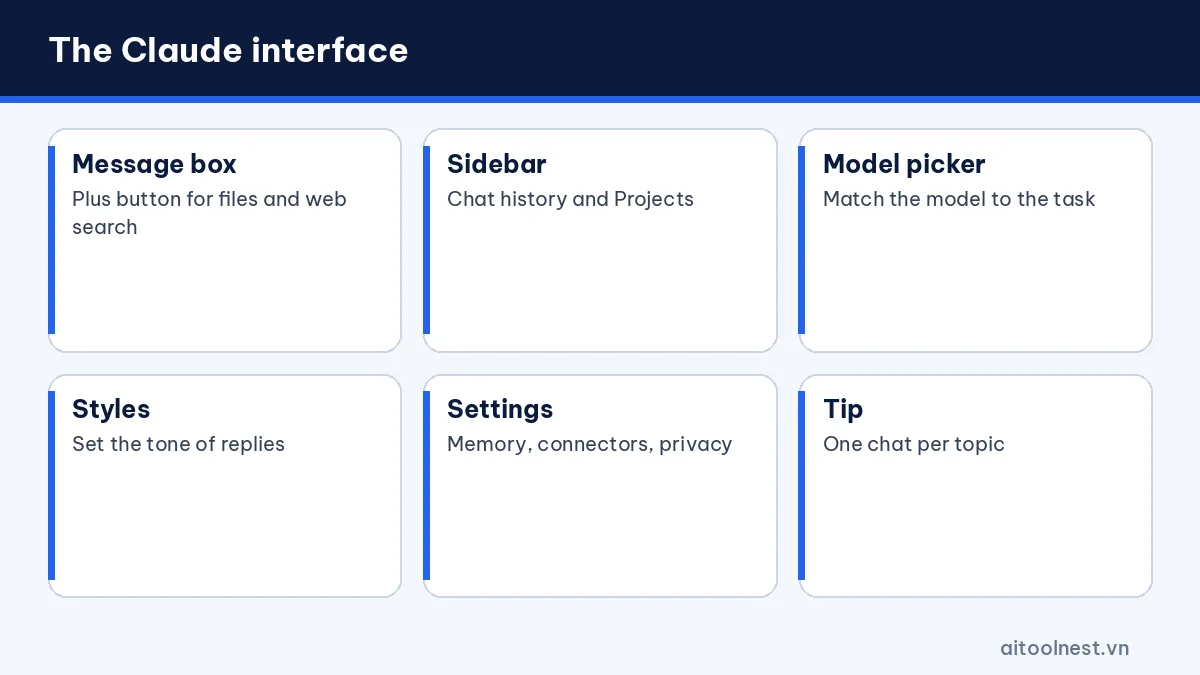
Claude’s interface is clean and simple. The main parts are:
- The message box in the middle of the screen, with a plus button for uploading files and images, taking a screenshot or turning on web search.
- The left sidebar, which holds your chat history, your Projects and the button for a new chat.
- The model picker, which lets you switch between Claude models depending on how hard the task is.
- Styles, which set the tone of replies: concise, explanatory, formal, or a custom style learned from your own writing sample.
- Settings, where you turn memory on or off, manage app connectors and review privacy options.
Tip: keep one conversation per topic. Very long chats use up your limit faster because Claude has to reread everything that came before each new reply.
Step 3: How to write prompts for Claude
Claude understands plain language well, but the clearer your prompt, the closer the result is to what you want. A good prompt usually has five parts:
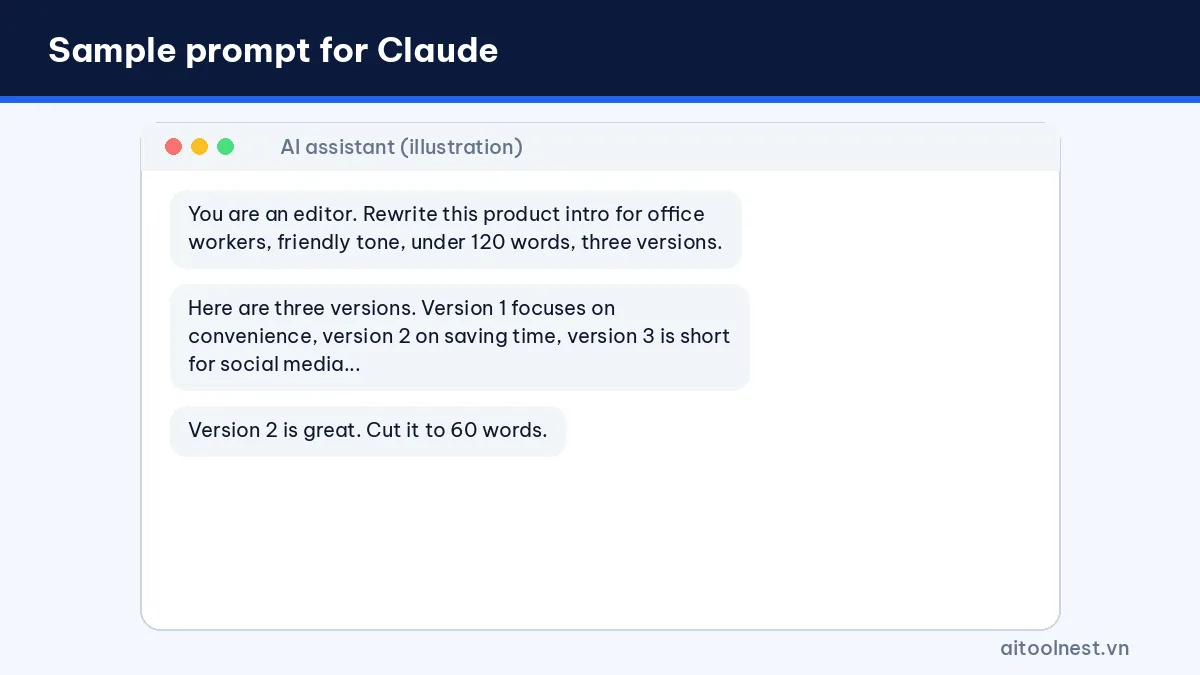
- Role: “You are a content editor with 10 years of experience.”
- Task: “Rewrite the product introduction below.”
- Context: “The customers are office workers aged 25 to 35.”
- Requirements: “Friendly tone, under 120 words, no clichés.”
- Format: “Give me three numbered versions.”
Claude does especially well when you give it a writing sample and say clearly what you don’t want. If the result isn’t right, don’t start over; give specific feedback such as “shorter”, “drop the intro” or “add an example”. For a method that works with any AI tool, read our guide on how to write AI prompts.
Here are three more prompts you can copy and adapt:
- “Explain how compound interest works as if I’m 15, then give me a simple example with real numbers.”
- “Turn these meeting notes into a short email to my team with decisions, owners and deadlines.”
- “Act as a job interviewer for a marketing role. Ask me one question at a time and give feedback on each answer.”
Step 4: Upload files and analyze documents
One of the most effective ways to use Claude is for analyzing long documents. Use the plus button to upload PDFs, Word files, spreadsheets, screenshots and many other text formats. Try prompts like:
- “Summarize this report in seven bullet points and name the three main risks.”
- “Compare these two contracts and list the clauses that differ in a table.”
- “Read this photo of a receipt and build an expense table.”
Always ask Claude to quote the exact passage or page number it relied on, then check that against the original. Don’t upload documents that contain passwords, ID numbers or confidential company data unless you’re allowed to.
Step 5: Use Projects and Artifacts
Projects
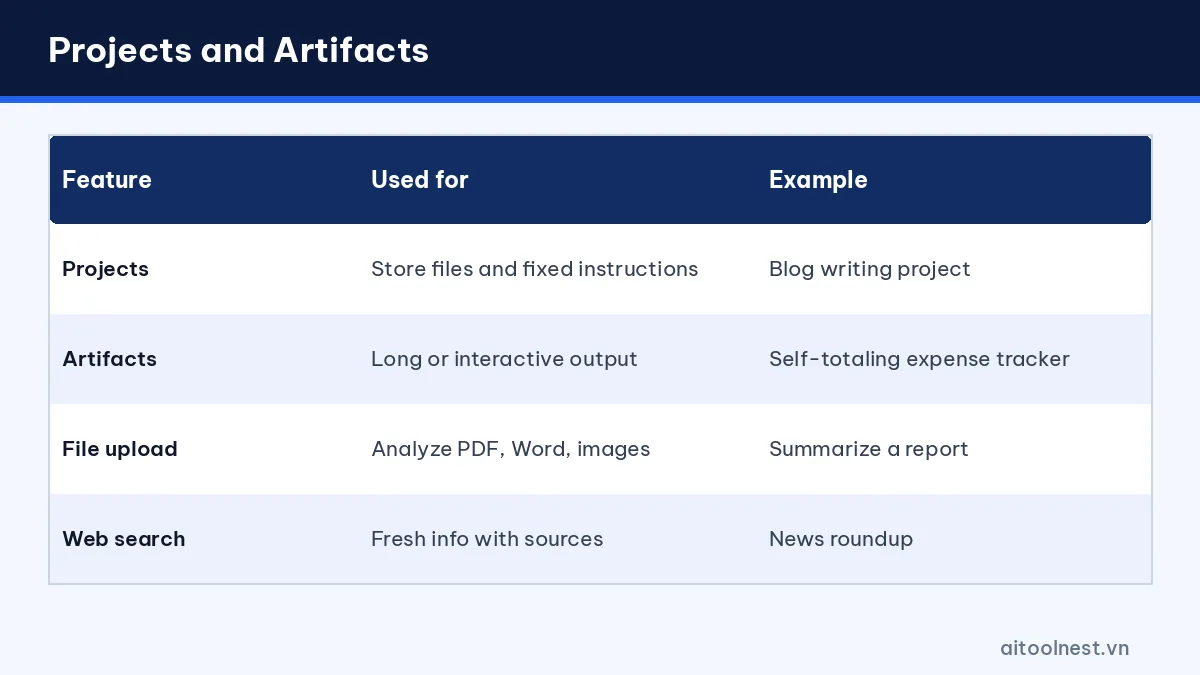
Projects are workspaces that store documents and standing instructions for recurring work, such as “Blog writing” or “Customer support replies”. You upload reference files, write fixed instructions (tone, length, audience), and every chat inside the project shares that context, so you don’t have to repeat yourself. The free plan allows up to five projects; Pro allows unlimited projects.
Artifacts
Artifacts appear in a separate panel next to the chat and are used for long or interactive content: documents, code, small web pages, charts and diagrams. You can edit, download or share them. For example: “Create a monthly expense tracker with input fields that totals everything automatically.” Artifacts are a great way to get something you can actually use, not just text in a chat window. When you’re happy with an artifact, you can publish it with a link or keep refining it with follow-up messages such as “add a chart for each category”.
Claude free usage limits and how to stretch them
Claude measures usage in windows of about five hours. When you’re close to the limit, Claude tells you when you can continue. Paid plans add weekly caps on top. How fast you use your allowance depends on message length, attachments and how long the conversation is.
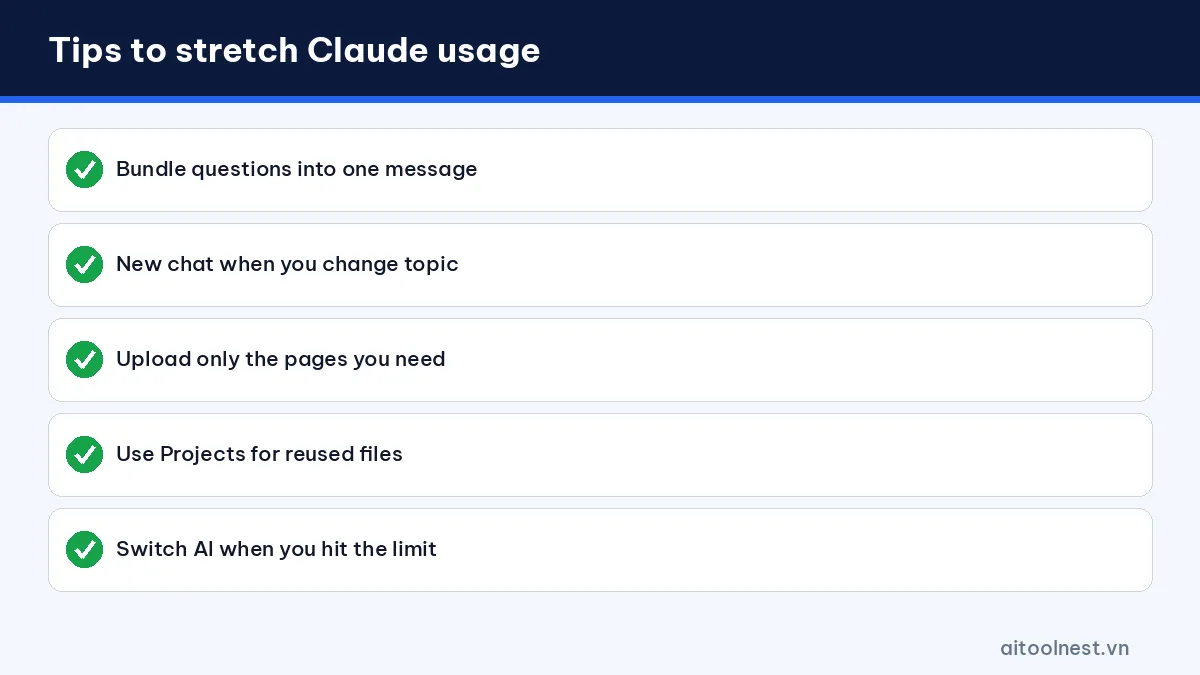
- Bundle several questions into one message instead of sending them one by one.
- Start a new chat when you change topic, pasting in a short summary of the old one.
- Upload only the pages you need rather than a whole document hundreds of pages long.
- Use Projects so you don’t upload the same files again and again.
- When you hit the limit, use ChatGPT or Gemini for urgent tasks in the meantime.
Common mistakes when you first use Claude
- Prompts that are too short: typing only “write about coffee” makes Claude guess. Add the audience, length and purpose.
- Trusting every answer: Claude can get numbers, names or dates wrong. Always verify important facts against the source.
- Using one chat for everything: the longer a conversation gets, the more usage it costs and the more the context gets muddled.
- Forgetting web search: for news, prices or recent events, turn on web search so Claude pulls current information with sources.
- Sharing sensitive data: never paste passwords, one-time codes or customer details into any AI assistant.
It’s also worth opening Settings to see what memory has saved about you, delete anything you don’t need and decide whether your chats may be used to improve the models.
Real-world examples of how to use Claude at work
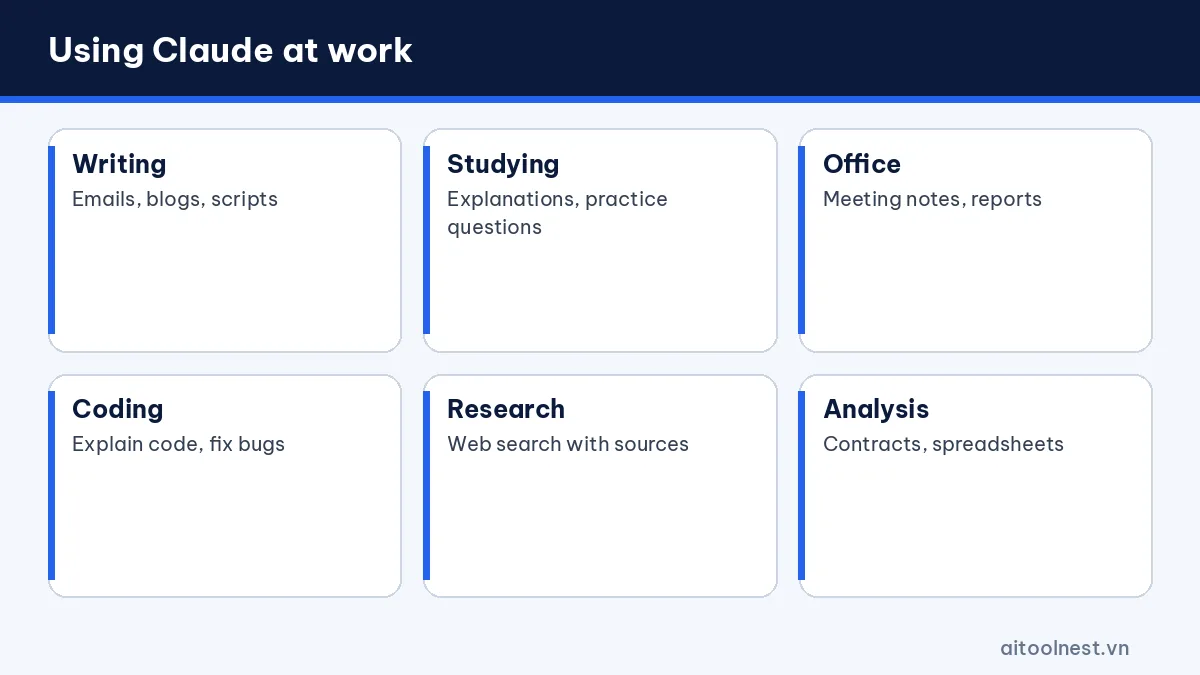
- Writing and editing: formal emails, blog posts, video scripts and rewriting text to match a sample style.
- Studying: explaining hard concepts, creating practice questions and summarizing books.
- Office work: meeting summaries, reports and spreadsheet analysis.
- Coding: explaining code, finding bugs and writing new functions; Pro adds Claude Code, which runs in your terminal.
- Research: turn on web search so Claude can gather recent information with sources.
If you’re weighing up AI assistants, our ChatGPT vs Gemini comparison and the AI tools directory give you the bigger picture. You’ll find more tutorials in our AI guides section.
How to use Claude: frequently asked questions
Is Claude free?
Yes. Claude has a free plan with web search, memory, Artifacts and up to five projects. Usage resets in windows of about five hours. The Pro plan costs $20 a month for more usage.
What languages does Claude support?
Claude understands and writes many languages well, including English and Vietnamese, so you can ask questions and get replies entirely in your own language.
Can Claude read PDF files?
Yes. Click the plus button in the chat box to upload a PDF, Word file, spreadsheet or image, then ask Claude to summarize, compare or extract information.
Why does Claude say I’ve reached my limit?
Claude caps usage in windows of about five hours, based on message length and attachments. Wait for the reset, start a shorter new chat or upgrade your plan.
How is Claude different from ChatGPT?
Claude is often praised for natural long-form writing, document analysis and coding, while ChatGPT is more of an all-rounder with image creation, voice and many integrations.
Conclusion
Learning how to use Claude well comes down to three habits: write clear prompts, upload only the documents you need analyzed, and use Projects for recurring work. The free plan is enough to try most features. Once Claude becomes your main work tool and you hit the limits regularly, the Pro plan is a sensible upgrade.
