
ChatGPT not working? Quick answer: go through these steps in order: (1) open status.openai.com to see whether OpenAI has an incident; (2) refresh the page or start a new chat; (3) turn off your VPN, proxy and ad blockers; (4) try a private window, another browser or another network; (5) clear the cache, sign out and sign back in. These five steps fix most “Something went wrong” messages, connection errors and slow responses.
This guide covers the ChatGPT error messages people see most often, what each one means and how to fix it on desktop and mobile. The steps follow OpenAI’s official troubleshooting guide, checked in October 2026. New to the tool? Start with our beginner’s guide to ChatGPT.
Updated: October 30, 2026
Contents
- Step 1: Is it OpenAI or your device?
- Common ChatGPT error messages and fixes
- ChatGPT slow, stuck or not responding
- ChatGPT not working on your phone
- Free plan usage limits
- When to contact OpenAI support
- FAQ
Step 1: Is ChatGPT not working because of OpenAI or your device?
Before you clear your cache or reinstall the app, find out where the problem is. There are two main groups of causes:
- OpenAI’s side: overloaded servers, an incident affecting one feature (images, voice, file uploads) or maintenance. You can’t fix these; you can only wait.
- Your side: an unstable connection, a VPN, browser extensions, corrupted cookies, an outdated app, a very long conversation or a plan limit you’ve reached.
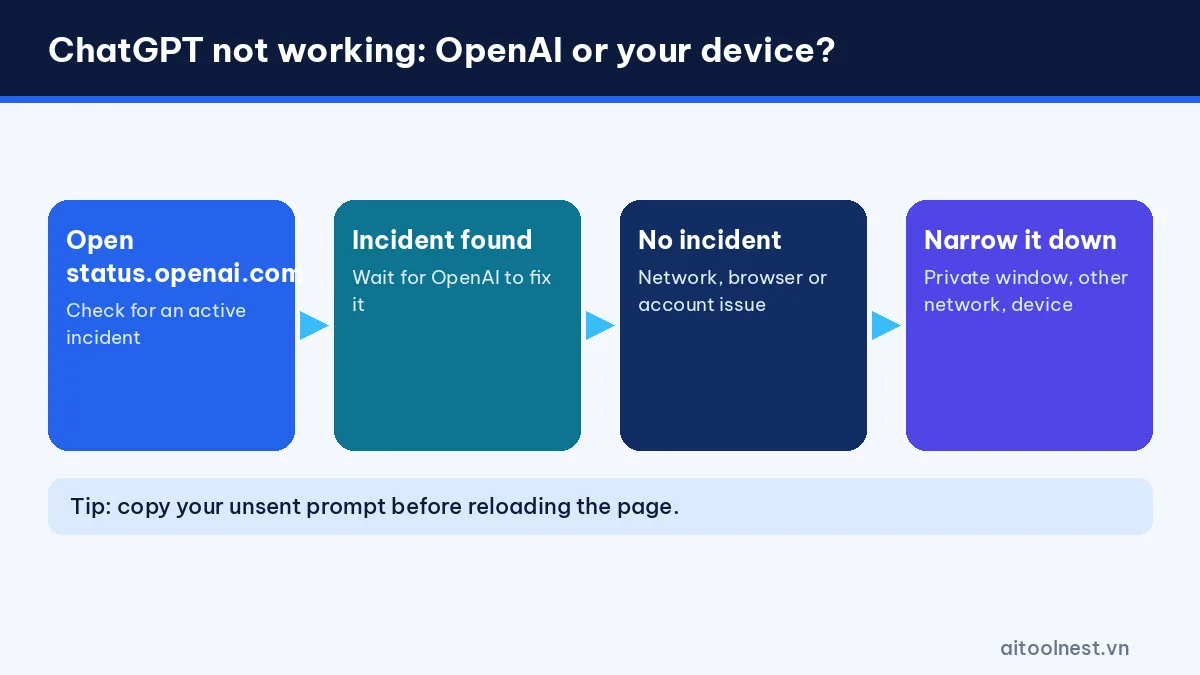
The fastest check is the status.openai.com page. If ChatGPT shows an active incident (yellow or red), wait and follow the updates. Don’t rely on an old, resolved incident to decide the service is down. If the status page looks normal, the problem is almost certainly your device, network or account.
Tip: before you try anything, copy the prompt you were typing into a note. Reloading the page can wipe unsent text.
Common ChatGPT error messages and how to fix them
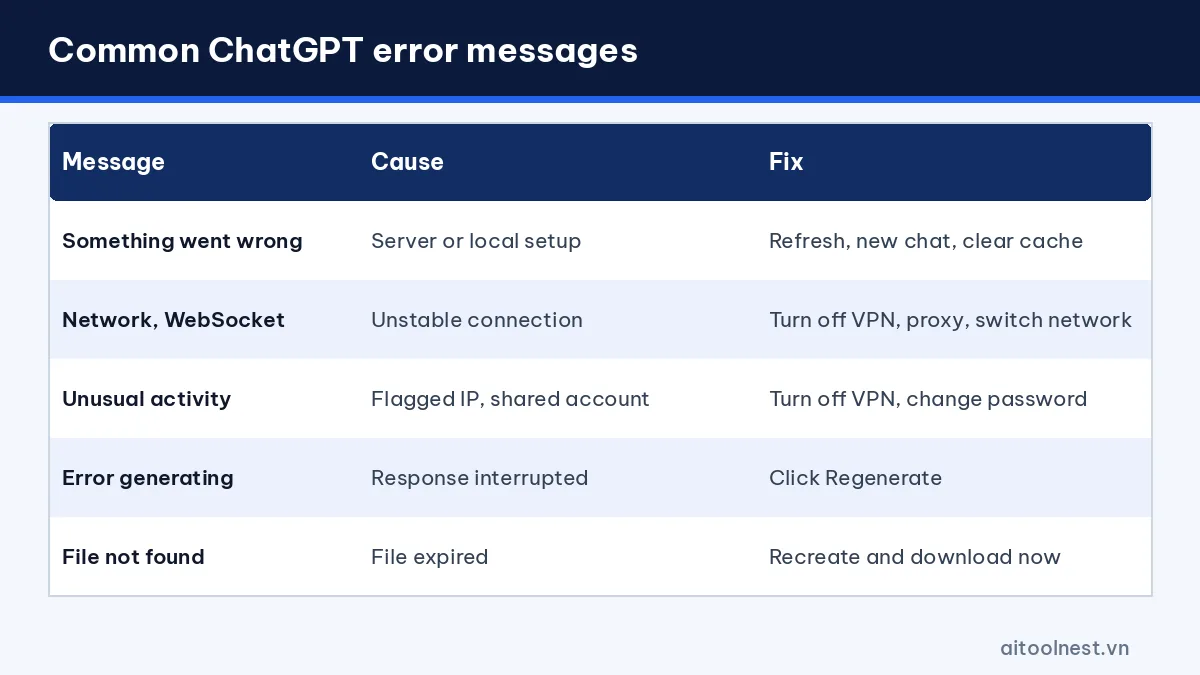
Each message points to a different cause. The table below summarizes the fixes from OpenAI’s help center:
| Error message | Usual cause | Fix |
|---|---|---|
| “Something went wrong” | Generic: temporary server issue or local setup | Refresh, start a new chat, clear cache, disable extensions and VPN |
| WebSocket / network error | Your device can’t keep a stable connection | Turn off VPN, proxy and secure DNS; switch network or browser |
| “Unusual activity detected” | Bot-like traffic, flagged IP, shared account | Turn off VPN, restart the browser, change your password, stop sharing |
| “Error generating a response” | The response was interrupted | Click Regenerate, start a new chat, change network |
| “Problem preparing your conversation” | Script-blocking extensions | Disable ad blockers, try a private window |
| “Download failed / file not found” | The generated file has expired | Ask ChatGPT to recreate it and download right away |
| Blank screen or endless loading | Broken cache, cookies or extensions | Hard reload (Ctrl/Cmd + Shift + R), clear site data |
“Something went wrong”
This is the most generic message. Refresh the page or start a new conversation. If it keeps happening, clear your browser cache and cookies, disable privacy or ad-blocking extensions, turn off your VPN and try a different network, for example mobile data instead of Wi-Fi.
Network and WebSocket errors
These mean your device can’t hold a stable connection to OpenAI’s servers. Common culprits are free VPNs, corporate proxies, antivirus web filters and secure DNS tools. Turn them off one at a time to find the cause. On office networks a firewall may block the connection, so compare with mobile data.
“Unusual activity detected”
This appears when traffic looks automated. Turn off your VPN (VPN IP addresses are shared by many people), restart the browser and open a fresh session. If you’ve ever shared your account or bought a “shared” account, change your password, turn on two-factor authentication and stop sharing it.
Response and file download errors
For a failed response, just click Regenerate; it’s usually a one-off. Files that ChatGPT creates (spreadsheets, PDFs, images) expire fairly quickly, so download them straight away. If you see “file not found”, ask ChatGPT to generate the file again.
ChatGPT slow, stuck or not responding
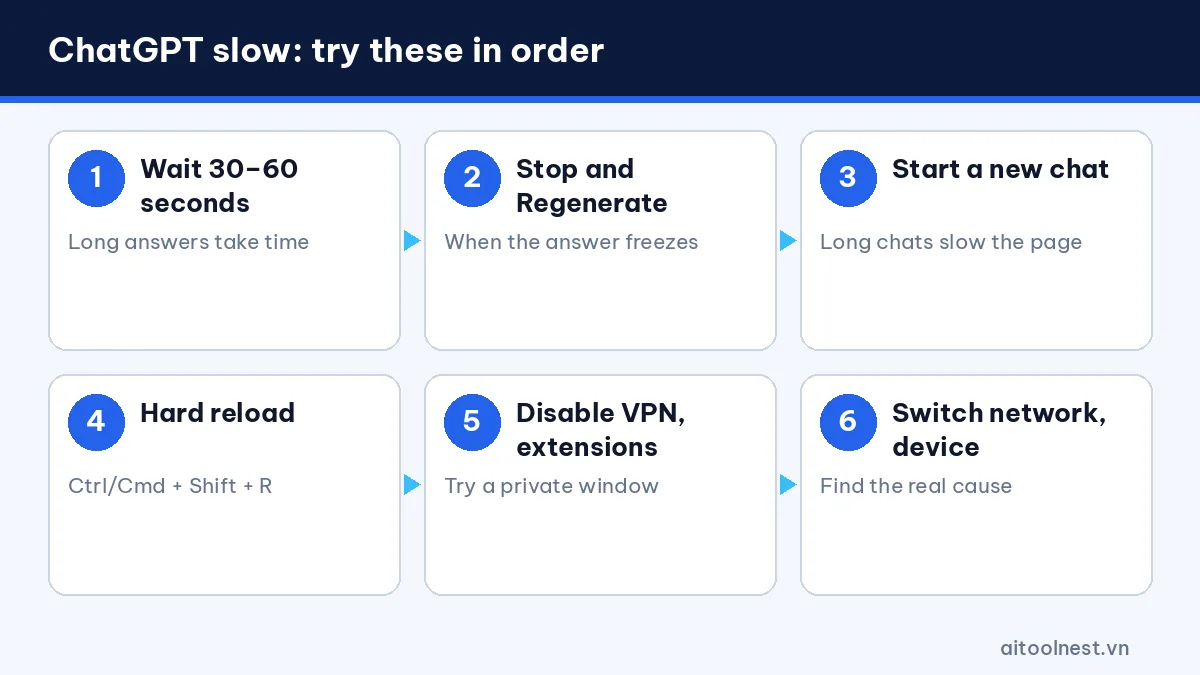
A slow ChatGPT is one of the most common complaints. Typical causes are peak hours, a very long conversation, reasoning models that take time to “think”, a weak connection or a browser weighed down by too many tabs. Try these in order:
- Wait 30–60 seconds. Long answers and reasoning modes can take a while.
- Click Stop, then Regenerate if the answer freezes.
- Start a new chat. Conversations with hundreds of turns make the page heavy. Summarize the key points and paste them into a new chat.
- Hard reload without cache with Ctrl + Shift + R (Windows) or Cmd + Shift + R (Mac).
- Disable extensions, VPNs and proxies, and try a private window.
- Switch browser, device or network. If it’s only slow in one place, the problem is there.
- Check status.openai.com again, because some incidents affect only one feature.
According to the ChatGPT pricing page, Free plan response times are “limited on bandwidth and availability”, while paid plans get faster responses. So at peak times, Free users may see slower answers even when nothing is wrong with their device.
Tips to keep ChatGPT fast
- Split big jobs into several smaller prompts instead of asking for one huge answer.
- Use Projects to group documents rather than stretching one chat forever.
- Close extra tabs and keep your browser up to date.
- Use the official desktop app if your browser is often sluggish.
- Avoid free VPNs when you use ChatGPT.
ChatGPT not working on your phone (Android, iPhone)
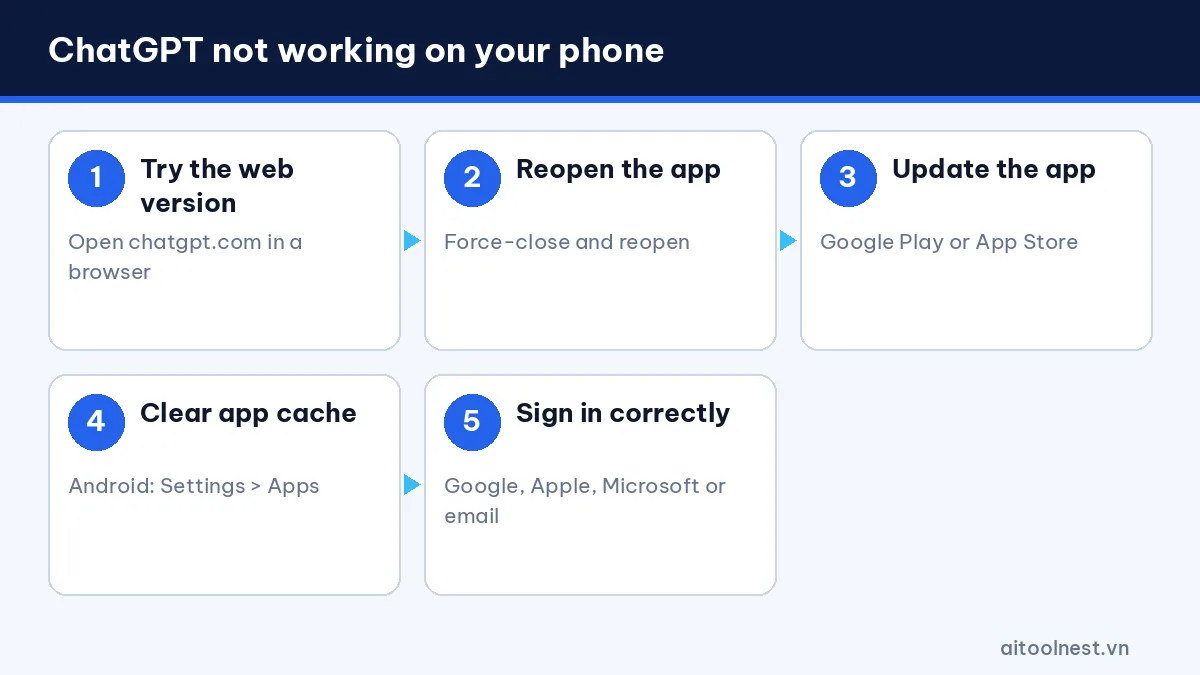
If ChatGPT fails only in the mobile app, narrow it down first: open chatgpt.com in your phone’s browser. If the web version works, the problem is the app.
- Force-close the app and reopen it.
- Update to the latest version from Google Play or the App Store.
- Make sure your phone’s date and time are set automatically.
- On Android, clear the app cache in Settings; if that fails, uninstall and reinstall as OpenAI recommends.
- Sign in with the same method you signed up with (Google, Apple, Microsoft or email). Picking the wrong method is a common reason for “can’t log in”.
Errors caused by Free plan usage limits
Not every message is a technical fault. The Free plan lets you chat freely but limits file uploads, image creation, voice chats and deep research. When you hit a limit, ChatGPT tells you to wait for the reset or upgrade. Resending the same request won’t help.
You can wait for the reset, switch to text-only tasks or use another assistant for a while, such as Gemini or Claude. If you’re thinking of switching, our ChatGPT vs Gemini comparison is a quick place to start. If you go with Claude, our guide on how to use Claude gets you set up in minutes.

When to contact OpenAI support
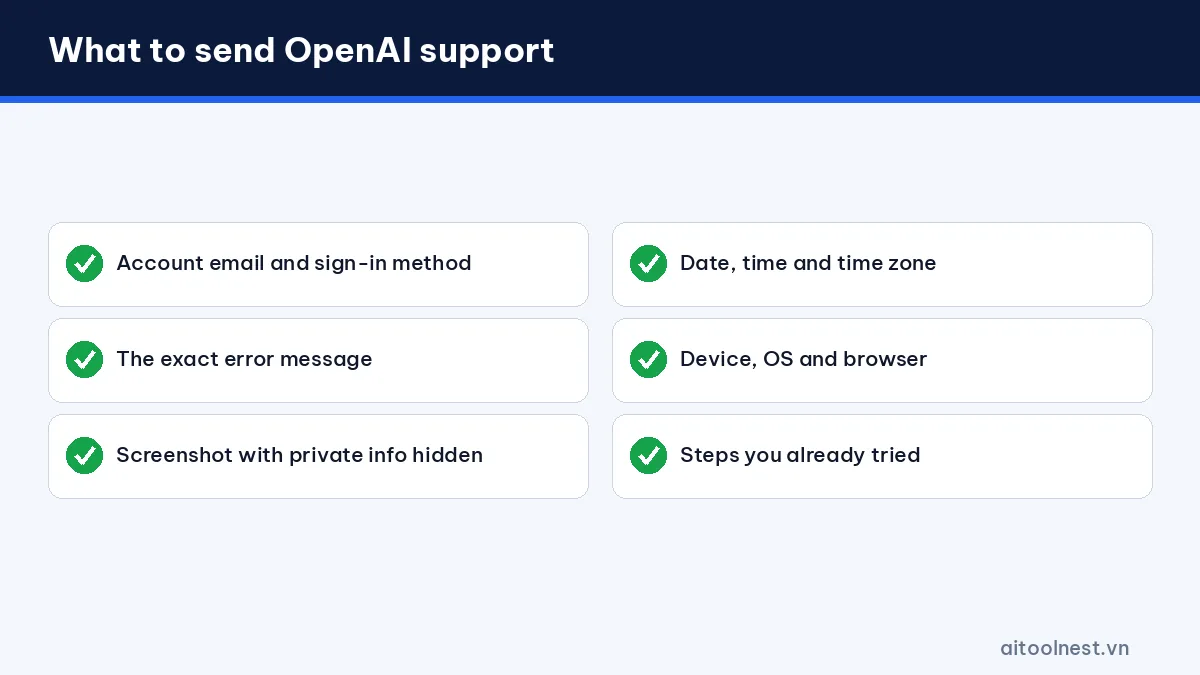
Contact support when the error happens across several browsers, devices and networks, or when you see a message that your account has been deactivated. Go to help.openai.com and use the chat bubble in the bottom-right corner. Have this ready:
- Your account email and sign-in method.
- The exact error message and a screenshot (hide private details).
- The date and time of the error with your time zone (for example 08:15, Vietnam time UTC+7).
- Your device, operating system, browser and the steps you’ve already tried.
Never send your password or verification codes to anyone, including people who claim to be support staff.
12-step checklist when ChatGPT is not working
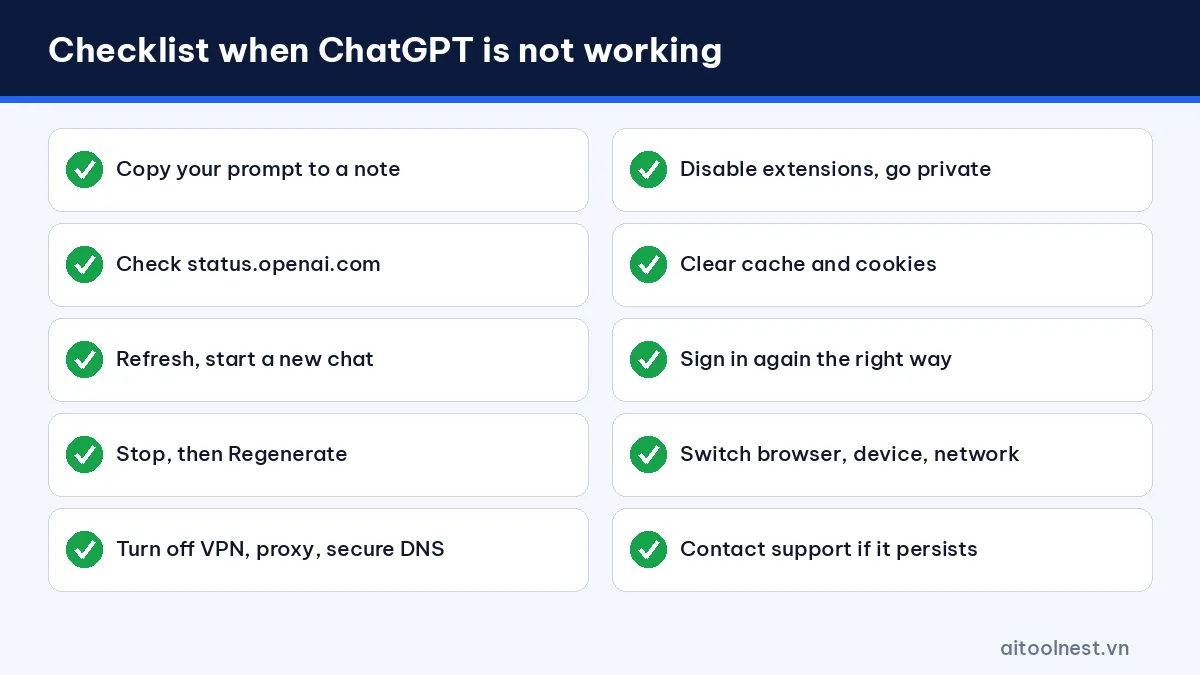
Save this checklist for next time:
- Copy the prompt you were writing into a note.
- Check status.openai.com.
- Refresh the page.
- Start a new chat.
- Click Stop, then Regenerate.
- Turn off VPN, proxy and secure DNS.
- Disable browser extensions.
- Try a private window.
- Clear ChatGPT’s cache and cookies.
- Sign out and back in with the right method.
- Switch browser, device or network.
- Contact support if it still fails everywhere.
Once ChatGPT is back, make the most of it by learning how to write better AI prompts so you get the right answer the first time, or browse alternatives in our AI tools directory. Our ChatGPT profile also sums up what the tool does well and where it falls short.
ChatGPT not working: frequently asked questions
How do I know if ChatGPT is down or it’s just me?
Open status.openai.com. If it shows a ChatGPT incident, the problem is on OpenAI’s side and you just need to wait. If everything is normal, try a private window, another network or another device to narrow it down.
Why is ChatGPT slow in the evening?
Peak hours mean more people at once. The ChatGPT pricing page says Free plan response times depend on bandwidth and availability, so they can be slower than paid plans. Very long conversations also slow things down.
Can a VPN stop ChatGPT from working?
Yes. VPNs and proxies are a common cause of connection errors and “unusual activity” warnings because many people share the same IP address. Turn the VPN off and try again.
Will clearing the cache delete my chat history?
No. Your conversations are stored in your account on OpenAI’s servers. Clearing cache and cookies just means you have to sign in again.
Is a “limit reached” message an error?
No. It’s a Free plan limit on features such as file uploads, images or voice. Wait for the limit to reset or upgrade your plan.
Conclusion
Most cases of ChatGPT not working or running slow come down to overloaded servers, your network, a VPN or the browser, and you can usually fix them in minutes by checking things in the right order: status page, refresh, new chat, VPN and extensions off, then another browser or network. Only when the error shows up everywhere should you contact OpenAI support, with full details so they can help quickly.
