

Quick answer: The simplest way to use ChatGPT is to go to chatgpt.com (or download the official app), sign in with your email or Google account and type your request into the chat box. For better answers, spell out the role, context, task and format, ask follow-up questions to refine the result and always double-check important information before you use it.
This guide is for beginners who want to learn how to use ChatGPT properly: from creating an account and writing prompts, to using it on desktop and mobile, getting the most out of the free plan and knowing what never to type into the chat. Plan and feature details were checked against OpenAI’s official pages as of October 2026.
Updated: October 24, 2026
Contents
- What is ChatGPT and what is it used for?
- Creating an account and signing in
- Getting to know the interface and key features
- How to write prompts that get the right answer
- Using ChatGPT on desktop and mobile
- Getting the most out of ChatGPT for free
- Ready-to-use prompt templates
- Safety and fact-checking tips
- Frequently asked questions
What is ChatGPT and what is it used for?
ChatGPT is a conversational AI assistant developed by OpenAI. You type (or speak) a request in plain language, and ChatGPT responds with text, tables, code, images or voice, depending on the features you use. For an overview of the tool, read our profile ChatGPT: uses, limits and how to get started on AI Tool Nest.
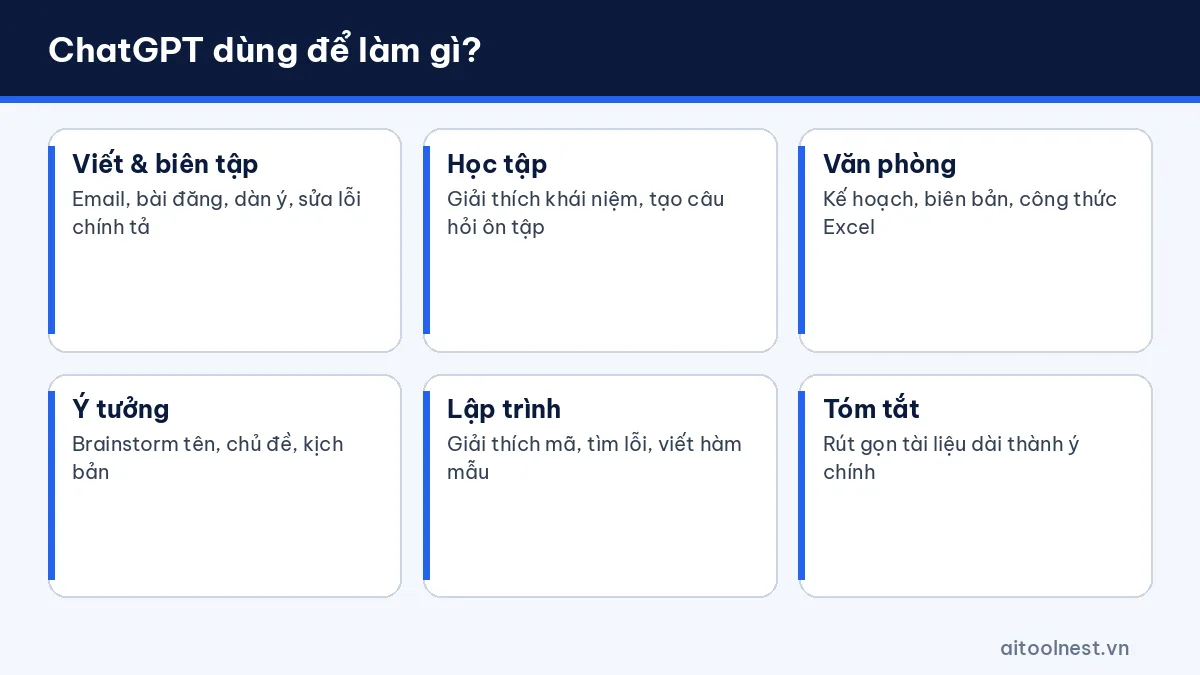
The most common things beginners use ChatGPT for:
- Writing and editing: drafting emails, posts and outlines, fixing spelling and changing the tone.
- Learning: explaining difficult concepts at different levels, creating practice questions and summarizing material.
- Office work: planning, writing meeting notes, suggesting Excel formulas and analyzing files.
- Ideas: brainstorming product names, content topics and short video scripts.
- Basic coding: explaining code, finding bugs and writing sample functions.
One important thing to remember: ChatGPT generates answers from a language model, so a response can sound perfectly reasonable and still be wrong. That’s why using ChatGPT well always includes a checking step.
How to use ChatGPT: creating an account and signing in
You can try chatting without signing in, but an account lets you save your history, use more features and sync across devices. Here are the steps:
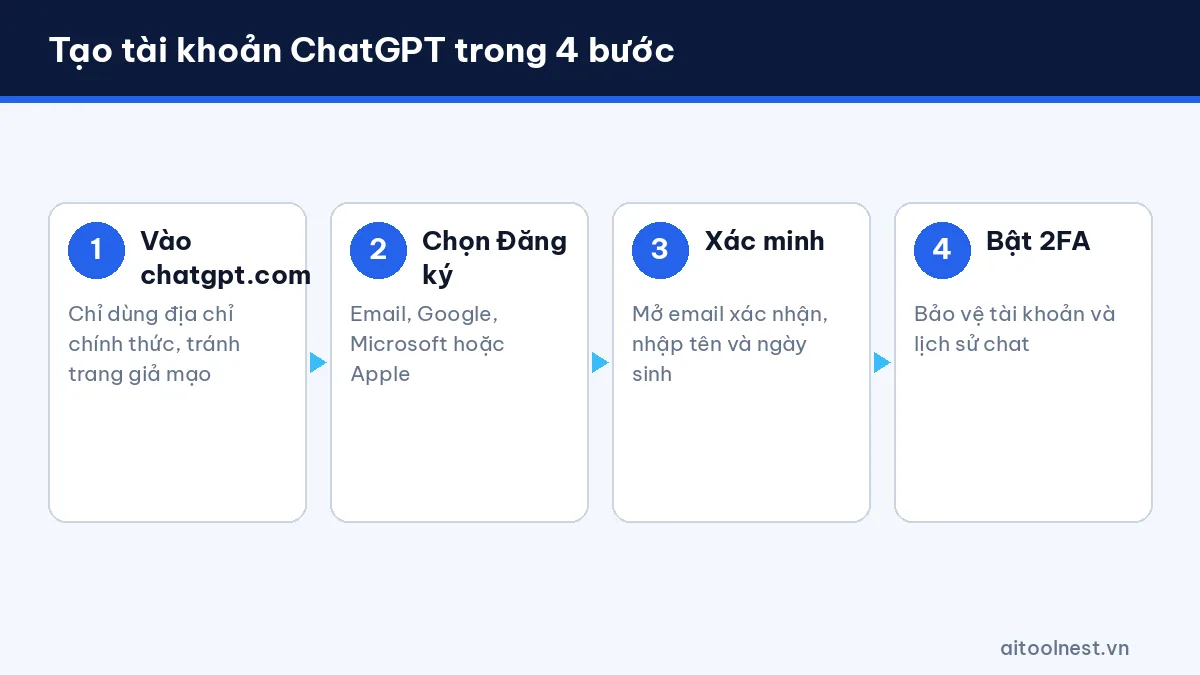
- Open your browser and go to chatgpt.com. Only use the official address, and avoid look-alike websites or apps with similar names.
- Click Sign up. Choose to sign up with your email, or with a Google, Microsoft or Apple account.
- If you use email, create a strong password and verify it through the email OpenAI sends you.
- Enter a display name and your date of birth when asked.
- Once you’re signed in, you’ll see the message box in the middle of the screen. This is where every conversation starts.
Security tip: turn on two-factor authentication (2FA) in your account settings to protect your account, especially if you keep a lot of work data in your chat history.
Getting to know the interface and key features
The ChatGPT interface is fairly minimal. Once you know the areas below, you’ll work much faster:
Sidebar: chat history and Projects
On the left is a list of your past conversations. Keep each topic in a separate chat so ChatGPT doesn’t mix up the context. According to the official pricing page, even the Free plan includes Projects, where you can group the chats and files for a single project.
Message box and attachments
Besides typing, you can attach files (PDF, Word, images, spreadsheets), use your voice or choose tools such as image generation, web search and deep research. On the Free plan, file uploads, image generation, voice and deep research have usage limits.
Personalization settings and memory
In settings, you can tell ChatGPT who you are and how you want it to answer (concise, with examples, in a particular language and so on). The memory feature lets ChatGPT remember some information across chats; you can review and delete it at any time.
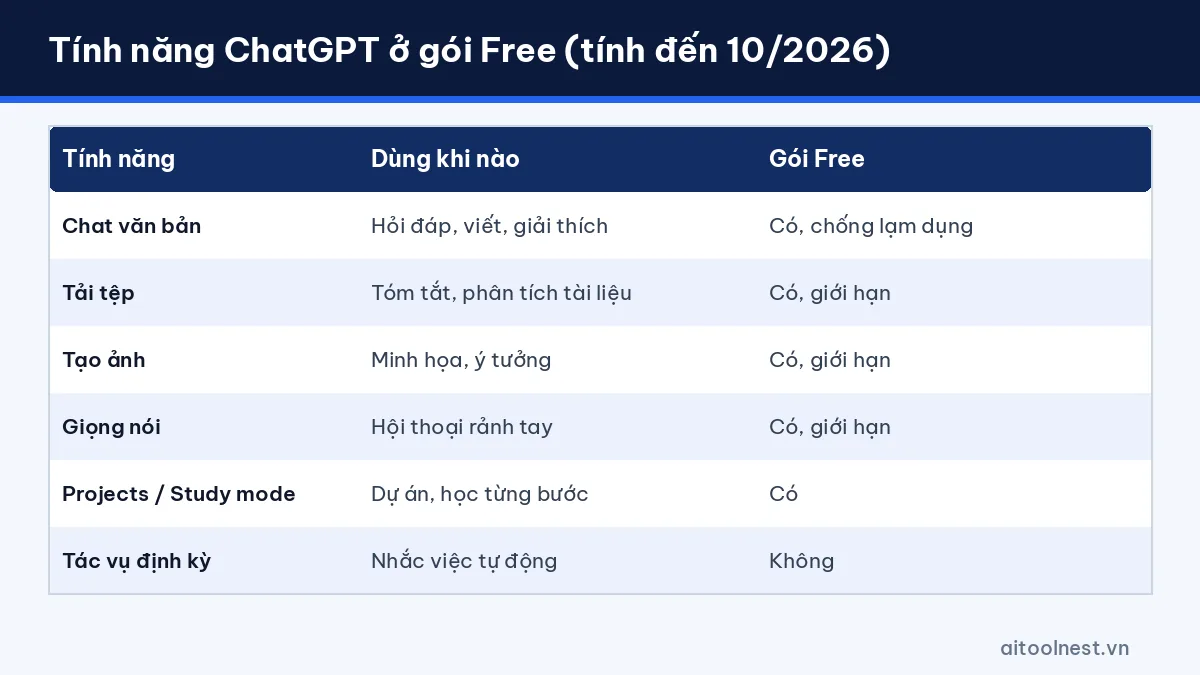
| Feature | When to use it | Free plan (as of 10/2026) |
|---|---|---|
| Text chat | Questions, writing, explanations | Yes, with abuse limits |
| File uploads | Summarizing and analyzing documents | Yes, limited |
| Image generation | Illustrations, visual ideas | Yes, limited |
| Voice | Hands-free conversation, speaking practice | Yes, limited |
| Projects | Grouping chats by project | Yes |
| Study mode | Step-by-step learning with quiz questions | Yes |
| Scheduled tasks | Reminders, automatic reports | No (paid plan required) |
How to write prompts that get the right answer
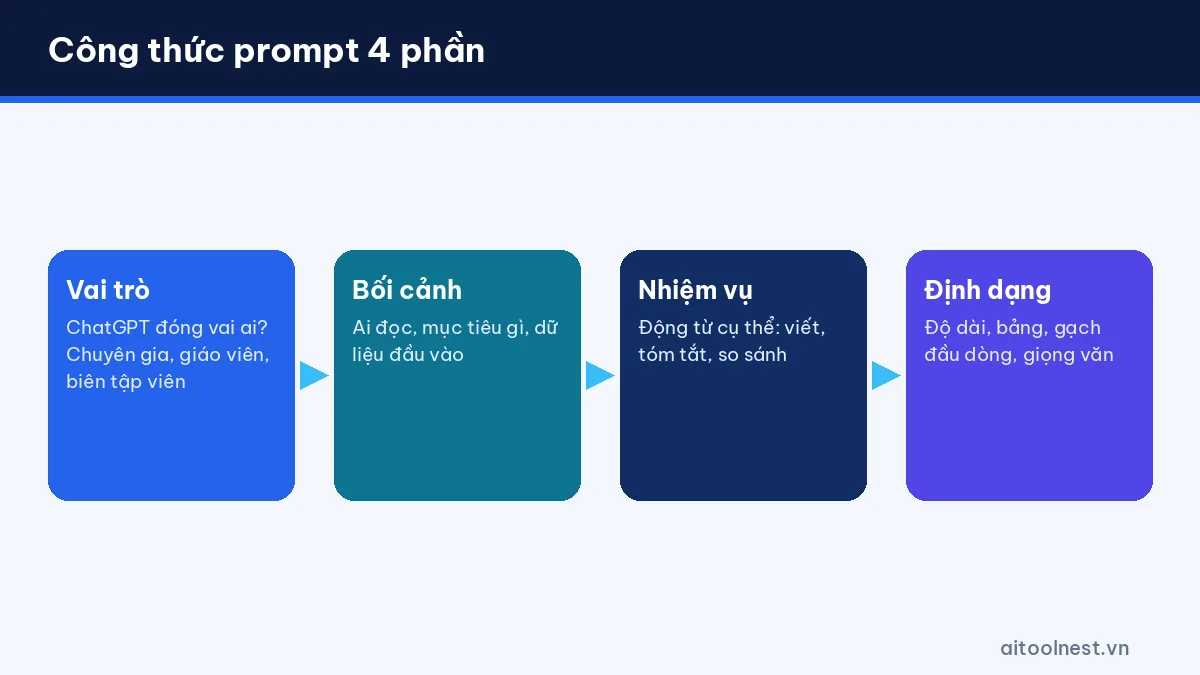
A prompt is the instruction you send to ChatGPT. Most “generic” answers come from prompts that are too short. An easy formula has 4 parts:
- Role: “You are an HR specialist with 10 years of experience…”
- Context: the audience, the goal and the input information.
- Task: a specific verb such as write, summarize, compare, list or fix.
- Format: length, table or bullet points, and tone.
A weak prompt: “Write a leave request email.” A better prompt:
You are an office assistant. Write an email to my manager requesting 2 days of leave (next Thursday and Friday).
Reason: family matters. I have handed over my work to Lan.
Requirements: polite tone, under 120 words, include a subject line.
Once you get a result, don’t stop at the first try. Follow up with “make it shorter,” “make it more formal” or “add a thank-you line.” This is the most important skill in using ChatGPT: iterate and refine. To go deeper, read our guide on writing clear prompts in 6 steps.
Using ChatGPT on desktop and mobile
On a computer
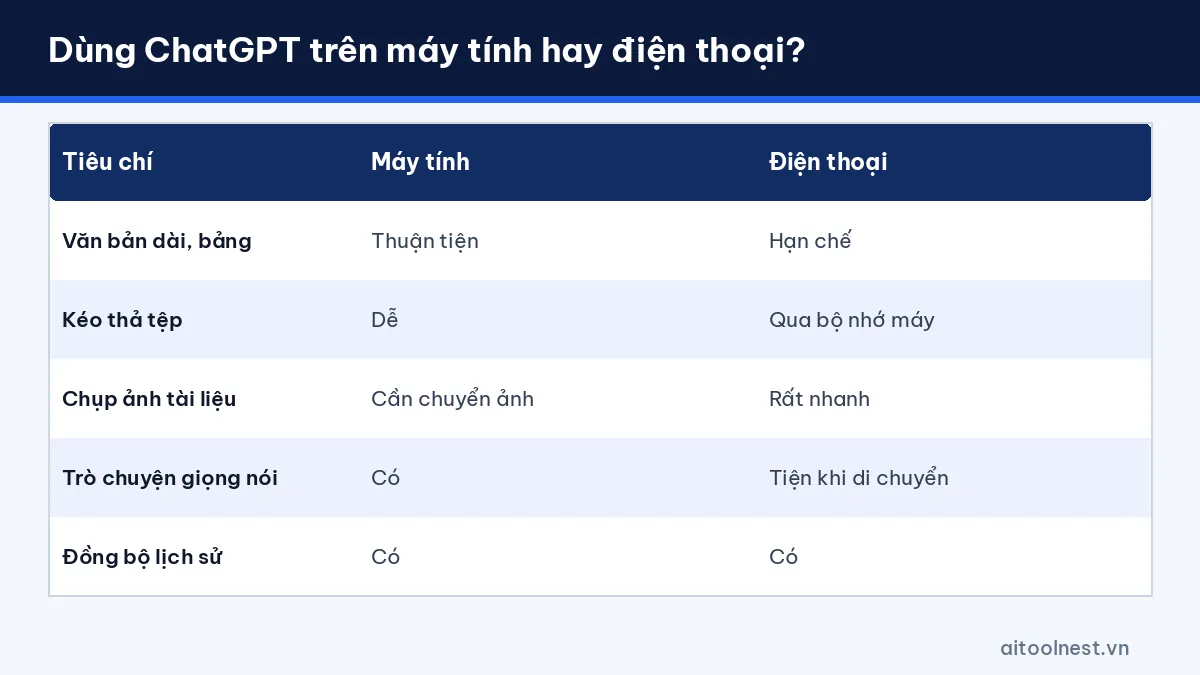
The quickest way is to use your browser at chatgpt.com. OpenAI also offers desktop apps; download them from OpenAI’s official website or your operating system’s app store. On a computer, it’s easy to paste long passages, drag and drop files and copy result tables into Word, Google Docs or Excel.
On your phone
Download the official ChatGPT app from the App Store or Google Play (the developer is listed as OpenAI). The app is handy for quick questions, snapping a photo of a document to ask about it or having a voice conversation on the go. Your chat history syncs with your account, so you can start on your phone and finish on your computer.
Using ChatGPT with Excel and documents
A common use is working with spreadsheets: describe your data (column names and a few example rows) and ask for formula suggestions, or upload the file for ChatGPT to analyze. Always test formulas on a copy of your data before applying them to the real file.
How to get the most out of ChatGPT for free
According to OpenAI’s official pricing page (as of October 2026), ChatGPT offers Free, Go, Plus, Pro, Business and Enterprise plans. The Free plan includes unlimited text chat with the GPT-6 model (subject to abuse safeguards), while file uploads, image generation, voice, deep research and memory are limited. Prices may vary by region, so check chatgpt.com/pricing directly when you sign up.
A few tips to make the free plan go further:
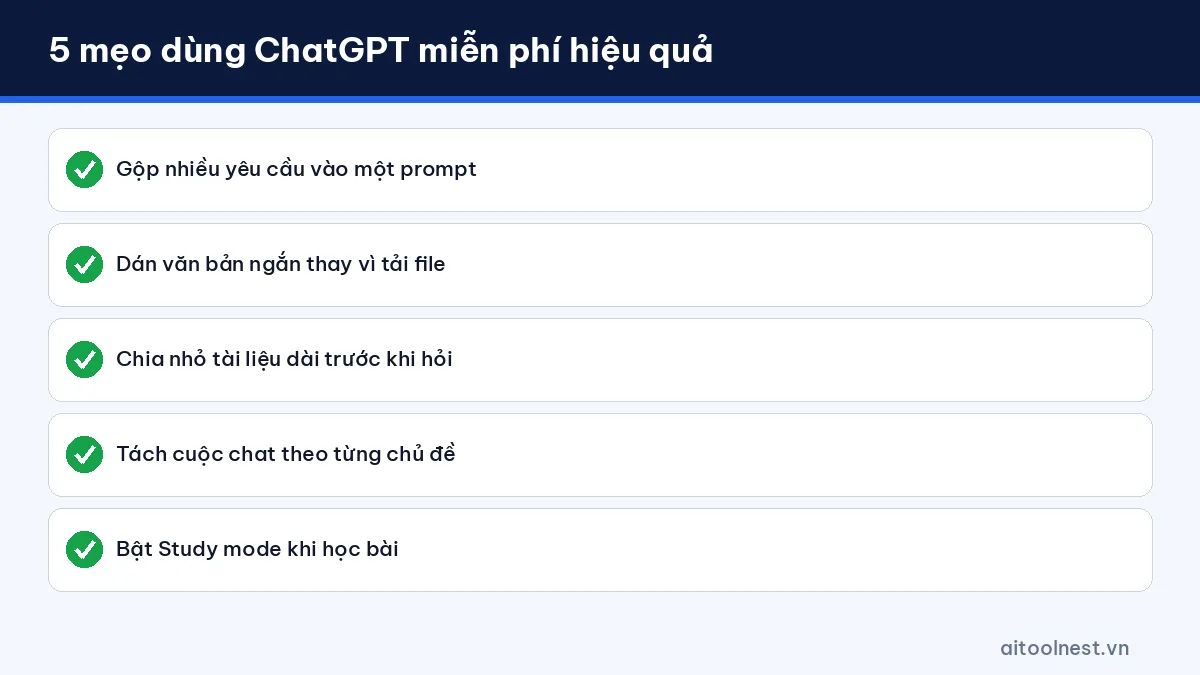
- Combine requests: instead of 5 separate questions, send one prompt with a list of things to do.
- Paste text instead of uploading files when a document is short, to save your upload allowance.
- Split long documents: the Free plan has a smaller context window than paid plans, so very long documents may have content missed.
- Keep separate chats for separate topics so old content doesn’t interfere with new answers.
- Use Study mode when learning: ChatGPT asks you questions and explains step by step instead of giving the answer straight away.
When should you consider paying? When you regularly hit the upload limit or need scheduled tasks, custom GPTs or more deep research. If you’re torn between AI assistants, our guide on choosing the right AI tool for your work will help you assess your own needs.
Ready-to-use prompt templates
Here are some prompt templates you can copy; replace the parts in square brackets with your own details. A fuller library is available on our AI prompts by task page.
Summarizing a document
Summarize the text below for [audience: my manager / a client / a 10th-grade student].
Format: 5 bullet points with the main ideas + 3 next steps.
If there are figures, keep the numbers exactly and note which paragraph they come from.
Text: [paste content]
Explaining a difficult concept
Explain [concept] to a beginner using an everyday example.
Then give me 3 multiple-choice questions to test myself, with the answers at the end.
Planning your work
I need to achieve [goal] within [time frame]. I have [number of hours] free each day.
Create a plan as a table: Day | Tasks | Duration | Output.
Point out risks that could cause delays and how to handle them.
Editing text
Fix the spelling and grammar and smooth out the paragraph below, keeping the meaning.
Return: (1) the edited version, (2) a table listing the important changes.
Paragraph: [paste content]
Safety and fact-checking tips for using ChatGPT
Using ChatGPT properly isn’t just about writing good prompts; it also means knowing the tool’s limits:
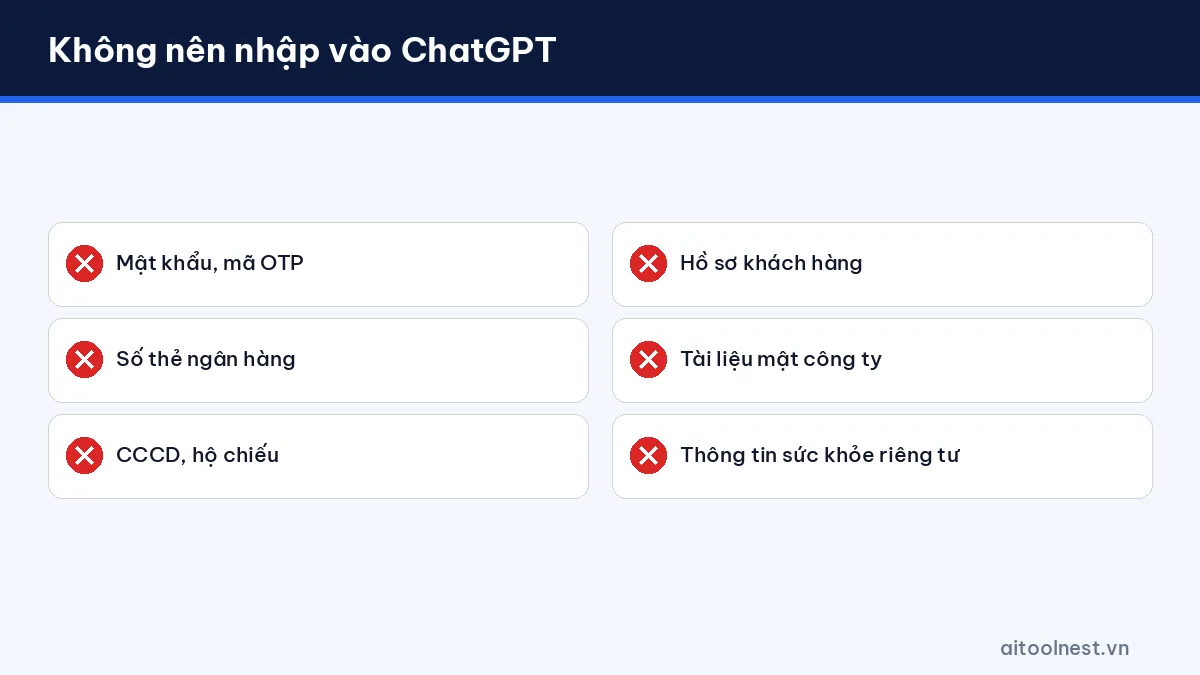
- Don’t enter sensitive data: passwords, card numbers, ID numbers, customer records or confidential company documents.
- Verify important information: figures, legal citations and medical or financial information should be checked against authoritative sources.
- Ask for sources when searching the web and open the links to check them yourself, because a link may not match the content.
- Follow the rules at your school or workplace: many schools and companies have their own policies on using AI.
- Edit before publishing: AI-written text should be adjusted to your own voice and real experience.
You can read more general principles in AI Tool Nest’s AI guides and OpenAI’s usage policies at openai.com/policies.
Frequently asked questions about using ChatGPT
Can I use ChatGPT for free?
Yes. As of October 2026, the Free plan allows text chat with abuse safeguards; features such as file uploads, image generation, voice and deep research have usage limits. See chatgpt.com/pricing for details.
Do I need an account to use ChatGPT?
You can try it without signing in, but creating an account lets you save your history, use Projects, upload files and sync between your computer and phone.
Does ChatGPT understand languages other than English?
Yes. You can ask questions and request answers in Vietnamese and many other languages. For more natural results, specify the audience and the tone you want.
Why does ChatGPT give wrong answers?
Language models can produce content that sounds plausible but is inaccurate. Ask for sources, open the links to check them and compare important information with authoritative documents.
How can I make ChatGPT’s answers shorter?
Add a format requirement to your prompt, such as “answer in under 100 words” or “use only 5 bullet points”, or set your preferred response style in the personalization settings.
Conclusion
Learning how to use ChatGPT isn’t hard: create an account on the official website, write prompts with a role, context, task and format, follow up to refine the result and always double-check the output. Start with a small daily task such as summarizing emails or planning your week, then gradually move on to more complex work. Follow our AI tutorials category for new guides.

Pingback: ChatGPT vs Gemini (2026): Which AI Assistant Should You Use?
Pingback: 25+ ChatGPT Prompts for Teachers: Lesson Plans, Tests & More
Pingback: How to Summarize YouTube Videos with AI: 3 Easy Methods
Pingback: Best AI Presentation Makers in 2026 (+ Prompts That Work)
Pingback: ChatGPT Not Working or Slow? 12 Quick Fixes (2026)
Pingback: ChatGPT vs Claude vs Gemini: Which AI to Use?