
Quick answer: To build a presentation quickly with AI, you can use Gamma (drafts an entire deck from a single prompt and has a free plan), Copilot in PowerPoint (if you already have a suitable Microsoft 365 plan), Canva AI (strong on design templates) or ChatGPT/Gemini to write the outline before you build the slides. Whatever tool you use, prepare your key message yourself, check the figures and polish the design before you present.
This article helps you pick the right AI presentation maker, with a 6-step process for turning raw material into a deck you can present and a set of prompts you can copy. Plan and feature details were checked against official websites as of October 2026.
Updated: October 24, 2026
Contents
- Why use an AI presentation maker?
- 4 AI presentation tools worth trying
- Quick comparison table
- A 6-step workflow for making slides with AI
- Slide prompt templates
- Common mistakes and how to fix them
- Frequently asked questions
Why use an AI presentation maker?
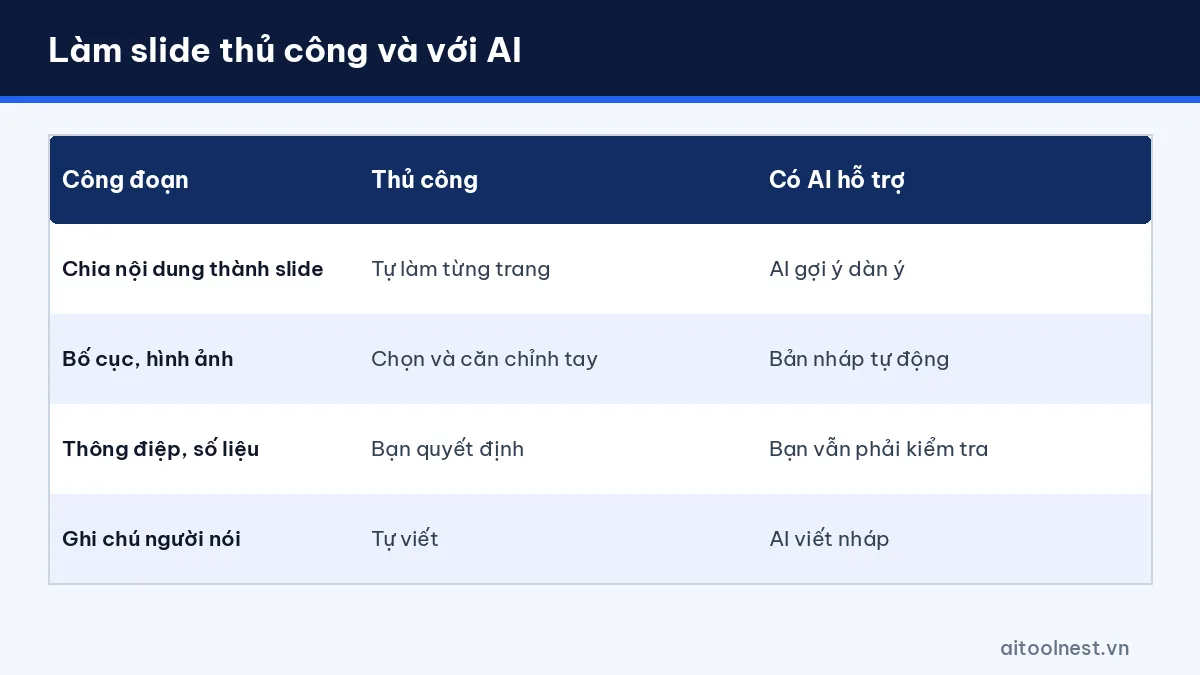
The most time-consuming part of making slides usually isn’t the ideas but arranging layouts, choosing images and aligning text on every page. An AI presentation maker gives you a first draft in minutes: it splits your content into slides and suggests titles, layouts and illustrations. You can spend the time you save on what matters more: your message, your data and your delivery.
That said, AI can’t understand your audience for you. AI-generated slides are often “pretty but generic”, may contain unverified figures or use images that don’t fit the context. Treat AI as an assistant that builds the draft, while you remain the final editor.
4 AI presentation tools worth trying
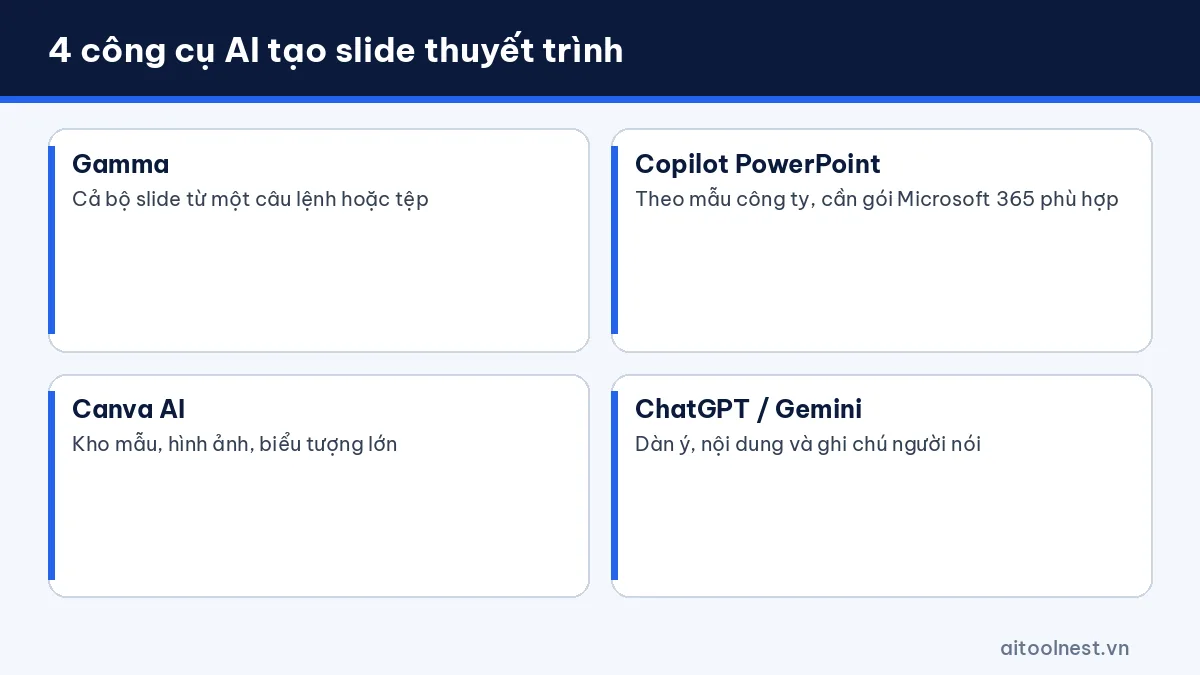
1. Gamma: build a full deck from one prompt
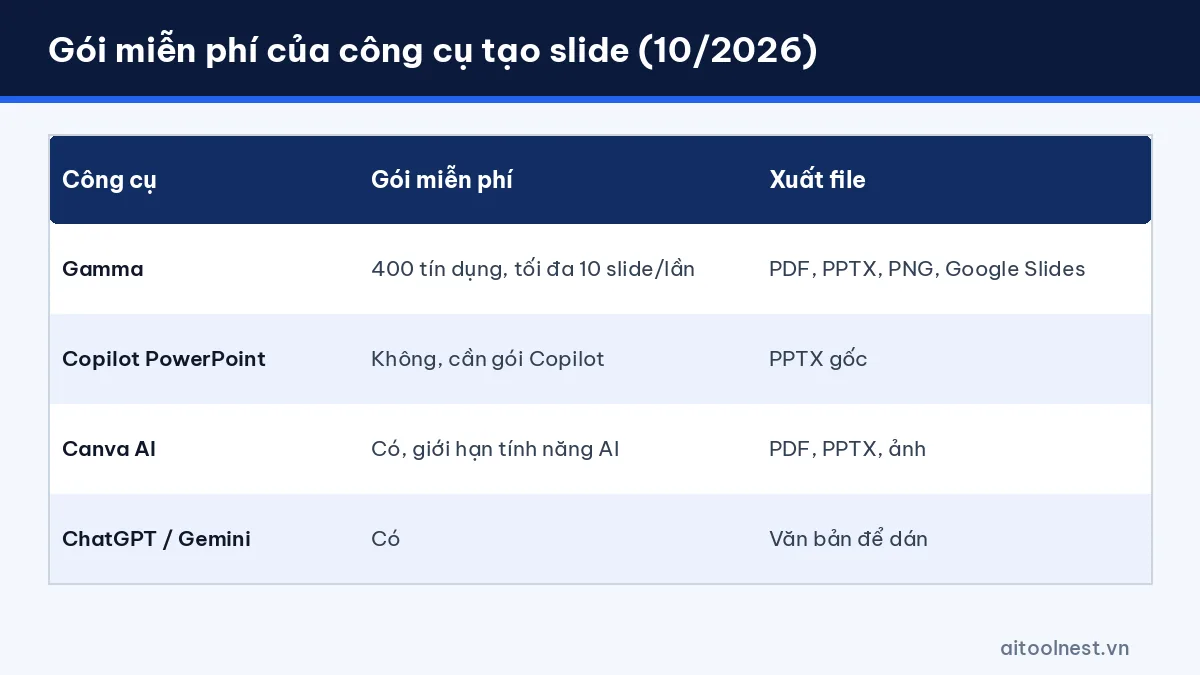
Gamma lets you enter a topic, paste text or import a file to create a complete deck. According to Gamma’s pricing page (as of October 2026), the Free plan gives you 400 credits when you sign up (not replenished), generates up to 10 slides at a time, imports PDF/PPTX and exports to PDF, PPTX, PNG or Google Slides. Plus costs $9 per user per month (billed annually) with 1,000 credits a month, up to 100 slides per generation and no Gamma branding; Pro is $18 with 4,000 credits; Ultra is $90 with 20,000 credits.
Best for: quick drafts, internal presentations and sharing decks as web pages.
2. Copilot in PowerPoint: for Microsoft 365 users
According to Microsoft’s guide, you open a new presentation, select the Copilot icon in the bottom-right corner and describe the presentation you want; Copilot may ask follow-up questions and then creates slides using the template you choose. You can also create slides from a Word document. This feature requires a Microsoft 365 Copilot (work) or Copilot Pro (personal) plan; if you don’t see the Copilot button, your plan may not include it.
Best for: businesses already on Microsoft 365 that need to keep company templates and branding.
3. Canva AI: strong on templates and design
Canva has an AI presentation maker: describe what you need, Canva suggests layouts and you keep editing with its huge library of templates, images and icons. The free plan limits how often you can use the AI features. Learn more in our Canva AI profile.
Best for: students, teachers and marketers who need eye-catching slides.
4. ChatGPT or Gemini: outlines and slide content
If you want tight control over the content, use ChatGPT or Gemini to outline the deck and write the title, key points and speaker notes for each slide, then paste them into PowerPoint, Google Slides or a slide tool. This works especially well for data-heavy presentations. See how to use ChatGPT and our ChatGPT vs Gemini comparison to choose the right assistant.
Quick comparison of AI slide tools (as of October 2026)
| Tool | Strengths | Free plan | Export | Best for |
|---|---|---|---|---|
| Gamma | Full deck from a prompt or file | 400 credits on sign-up, up to 10 slides per generation | PDF, PPTX, PNG, Google Slides | Quick drafts |
| Copilot in PowerPoint | Uses company templates, builds from Word files | No (requires Microsoft 365 Copilot or Copilot Pro) | Native PPTX | Businesses |
| Canva AI | Huge template and image library | Yes, with limited AI features | PDF, PPTX, images | Education, marketing |
| ChatGPT / Gemini | Outlines, content, speaker notes | Yes | Text to paste into slides | Data-heavy talks |
If you just want to try it out, start with Gamma’s or Canva‘s free plan. If your company already pays for Microsoft 365 Copilot, use Copilot to stick to your internal slide templates. Tools for other needs are listed in our AI tool directory.
A 6-step workflow for making presentations with AI
- Define your goal and audience: answer 3 questions: who is listening, what do they need to know and what should they do after your talk?
- Gather your source material: collect reports, figures and notes in one document. AI does much better with specific input.
- Outline first: ask ChatGPT or Gemini to split the content into 8–12 slides, with one message per slide.
- Build the slides with an AI tool: paste the outline into Gamma, Canva or Copilot to create a draft with layouts and images.
- Edit: cut the text (no more than 3–5 points per slide), replace generic images with real product photos and check figures against the source.
- Rehearse with notes: ask AI to write speaker notes and questions the audience might ask, then practice once or twice.
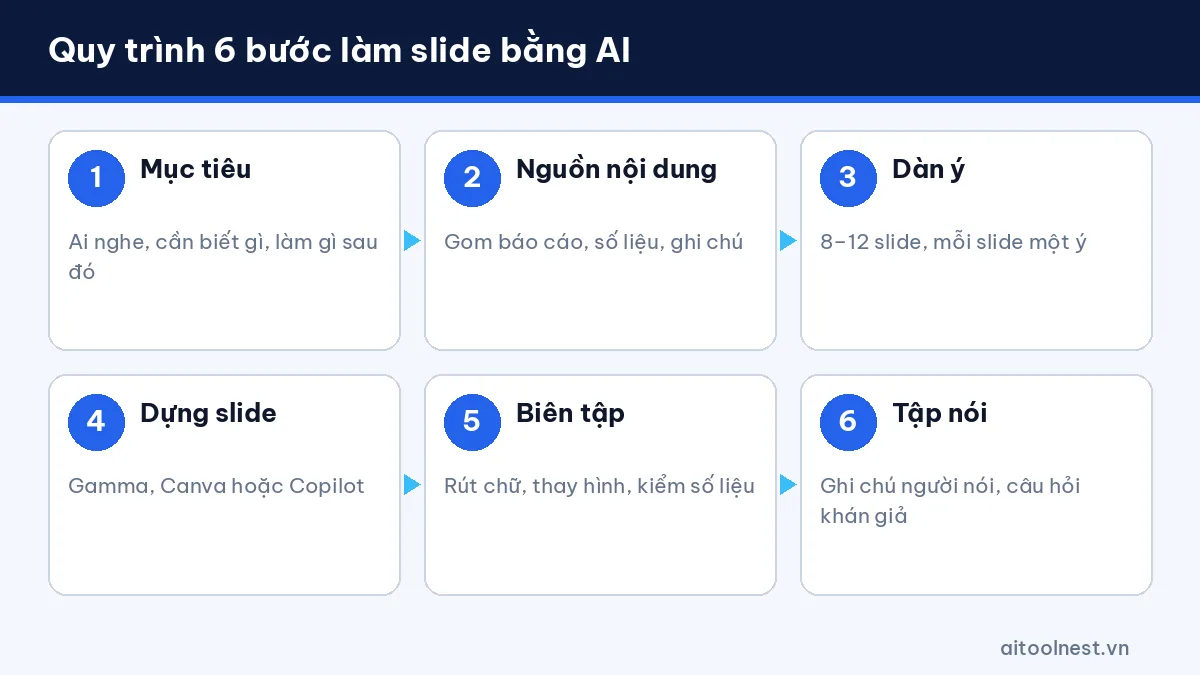
For a 10-minute talk, about 8–12 slides is reasonable. Don’t let AI cram in too much text: your audience is listening to you, and the slides are just visual support.
Prompt templates for AI presentation makers
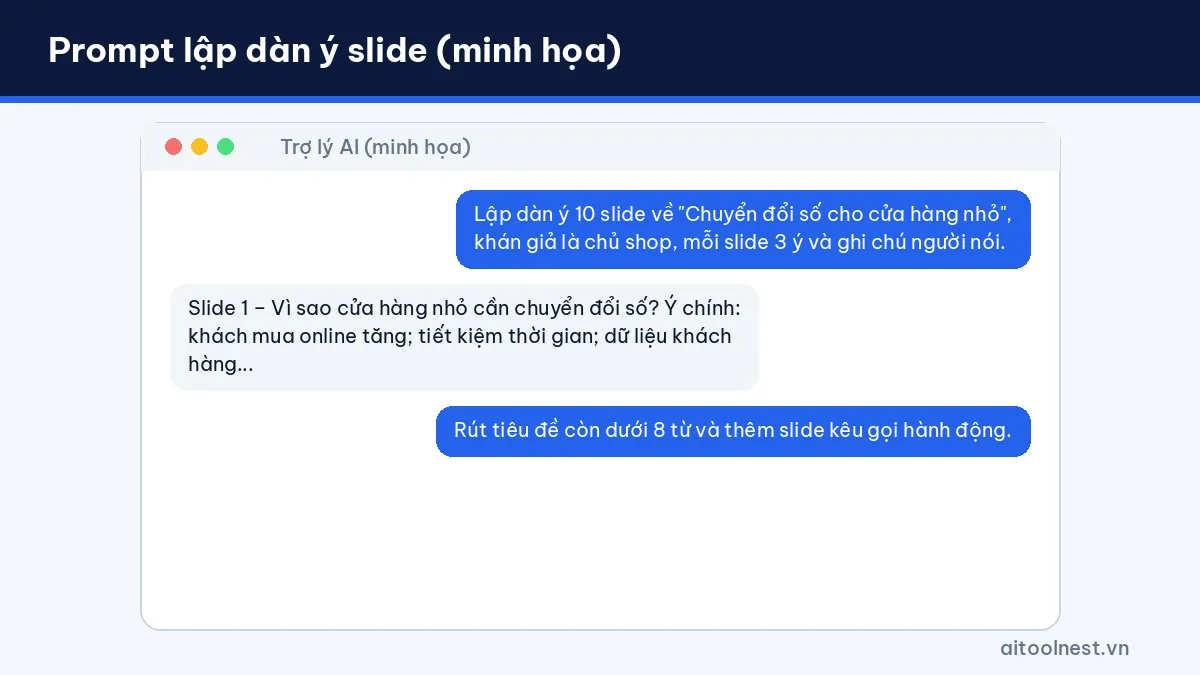
Prompt to outline a deck
You are a presentation design expert. Create an outline for a [10]-minute presentation on [topic]
for [the board of directors / 11th-grade students / business clients].
Requirements: 10 slides, each with a title (under 8 words), 3 short key points, an illustration idea and 2-3 sentences of speaker notes.
The last slide is a call to action. Only use information from this document: [paste document].
Prompt for free tools like Gamma and Canva
Create a 10-slide presentation about [topic] for [audience].
Style: minimal, light background, navy blue as the main color, large easy-to-read text.
Maximum 40 words per slide. Include 1 comparison slide as a table and 1 timeline slide.
Prompt to turn a Word document into slides
Based on the attached document, create an 8-slide presentation summarizing the key points for our weekly meeting.
Keep all figures exactly as they are and cite the source in each slide's footer. Add a "Next steps" slide.
Prompt to rehearse before presenting
Here is the content of my slides: [paste]. Play a tough audience member and ask me 8 questions
I might be asked, ordered from easy to hard, with short suggested answers.
Common mistakes with AI slide tools and how to fix them
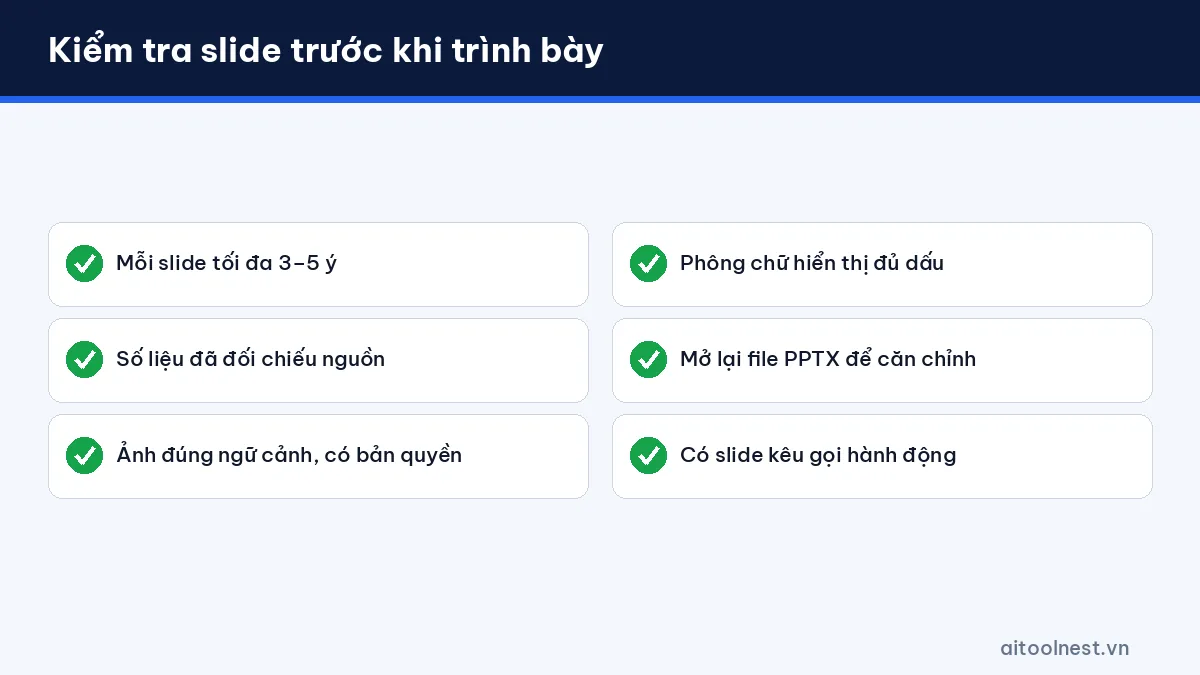
- Too much text: ask for “no more than 40 words per slide” in your prompt, then trim further yourself.
- Made-up or outdated figures: only let AI use the material you provide, and check every number.
- Irrelevant images: replace them with real photos, charts from your own data or simple icons.
- Broken accents or special characters: choose fonts with full character support, such as Noto Sans or Roboto, when exporting to PPTX.
- Layouts that break on export: reopen the PPTX in PowerPoint or Google Slides and fix the alignment before sending it.
- No personal touch: add real examples, your own stories or internal data to make your talk more persuasive.
To work faster with other AI tools for summarizing documents and taking meeting notes, see our Productivity category.
Frequently asked questions about AI presentation makers
What’s a good free AI presentation maker?
As of October 2026, Gamma has a Free plan with 400 credits on sign-up and up to 10 slides per generation, and Canva offers AI slide creation with limits on its free plan. You can also use ChatGPT or Gemini for free to write the outline.
Is there an AI that builds PowerPoint slides directly?
Yes. Copilot in PowerPoint creates presentations from a description or a Word document, but it requires a Microsoft 365 Copilot or Copilot Pro plan. Gamma and Canva can also export PPTX files.
Can AI presentation makers create slides in other languages?
Yes. State the language clearly in your prompt, for example “in Vietnamese”, and check that your fonts display all the characters correctly when you export.
How many slides should a 10-minute presentation have?
About 8–12 slides, each with one main message and no more than 3–5 short points.
Can I submit AI-generated slides for school or send them to clients?
You can use them as a draft, but you need to check the figures, image rights and your school’s or company’s rules on using AI.
Conclusion
An AI presentation maker takes you from raw material to a structured draft in just a few minutes. Choose your tool to suit the situation: Gamma for quick drafts, Copilot in PowerPoint for businesses on Microsoft 365, Canva AI for eye-catching design, and ChatGPT or Gemini for outlines and notes. What really determines quality is still a clear message, accurate data and your own preparation.
